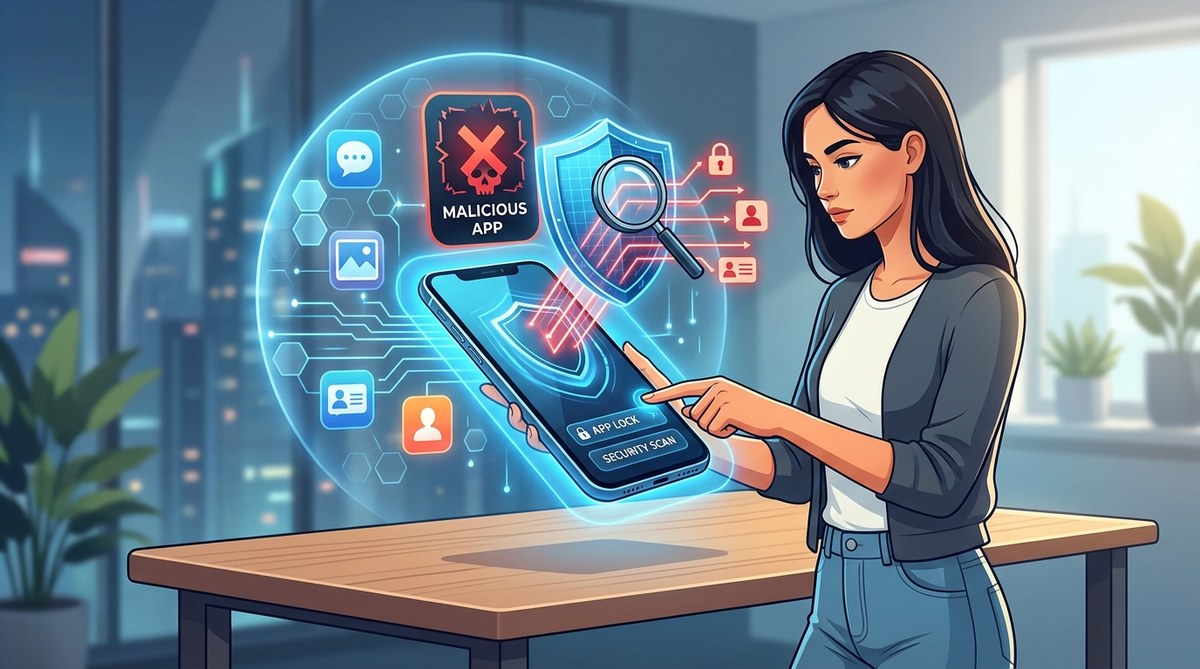
Your phone buzzes with a notification. A new game your friends are playing. A flashlight app that promises to be “free forever.” A PDF scanner that looks exactly like the real one. You tap install without thinking. Forty eight hours later, your bank sends a fraud alert. Someone in another state just used your credit card number.
That chain of events plays out thousands of times a day in 2026. Malicious apps have gotten better at hiding. They mimic legitimate software, request harmless sounding permissions, and wait weeks before they start siphoning your data. The good news is that you can spot them before they do damage. You just need to know what to look for.
Most malicious apps can be identified before you install them by checking three things: the developer’s reputation, the permission requests, and the app store reviews. This guide gives you a repeatable process to evaluate any app in under two minutes. Use it every time you download something new, and you will avoid 99 percent of app based data theft in 2026.
The Four Red Flags That Never Lie
Every malicious app shares at least two of these warning signs. If you see three, delete the app immediately.
1. The Developer Is a Ghost
Open the app store page and scroll down to “Developer” or “Publisher.” Tap the name. A legitimate developer has a profile page with multiple apps, a website, and a contact email. A malicious developer often has one app, no website, and a generic email address like “[email protected].”
Check the developer’s website. Does it look professional? Does it have a privacy policy? If the site is a single page with broken English, that is a strong warning.
2. Permissions That Do Not Match the App
A calculator app does not need access to your contacts. A wallpaper app does not need your microphone. A simple game does not need your location. Yet malicious apps ask for these permissions all the time.
On Android, you can see the full permission list before you install. On iOS, check the “Privacy” section of the app store listing. If the app wants access to your camera, microphone, location, or SMS messages without a clear reason, do not install it.
3. Reviews That Feel Off
Sort reviews by “Most Recent” and look for patterns. Malicious apps often have batches of five star reviews posted on the same day, all with similar phrasing like “Great app, works perfectly!” Real reviews mention specific features, bugs, or use cases.
Also look at the one star reviews. If multiple people report that the app asked for unusual permissions, drained their battery, or showed ads for shady services, trust them.
4. The Name Is a Typo
Attackers copy popular apps and change one letter. “WhatsApp” becomes “WhatsAppp.” “Spotify” becomes “Spotfy.” “Venmo” becomes “Venmoo.” These lookalike apps rely on you tapping too fast.
Read the name out loud. If it sounds wrong, it probably is.
A Practical Step by Step Process to Vet Any App
Follow this process every time you download an app. It takes less than two minutes.
-
Check the publisher name. Compare it to the official website of the service. If the app claims to be from “Adobe” but the publisher is “PDF Solutions LLC,” that is a mismatch.
-
Read the permission list. On Android, tap “About this app” then “App permissions.” On iOS, scroll to “Data Used to Track You.” Ask yourself: does this app need every single permission it requests?
-
Count the downloads. If an app has over 10 million downloads and a 4.5 star rating, it is probably safe. If it has under 10,000 downloads and a 4.9 rating, be suspicious. Real apps with few downloads usually have mixed reviews.
-
Search the app name plus the word “scam.” Type “AppName scam” into Google. If other people have reported issues, you will find them.
-
Install from the official source only. Never sideload apps from random websites. Never use a third party app store. Stick to the Google Play Store, Apple App Store, or the developer’s own website.
Common Mistakes That Get People Hacked
| Mistake | Why It Is Dangerous | What to Do Instead |
|---|---|---|
| Downloading from ads on social media | Scammers buy ads to push fake apps that look real. | Search for the app name directly in the app store. |
| Granting permissions without reading | An app can use your camera or microphone in the background. | Deny any permission that does not directly support the app’s core function. |
| Ignoring update descriptions | Malicious updates can add spyware after you have trusted the app. | Read update notes. If an update suddenly requests new permissions, do not accept. |
| Using “free” versions of paid apps | Free versions often contain malware or sell your data. | Pay for the official app or use a reputable free alternative. |
| Tapping “Allow” on every popup | Some apps use deceptive popups to get access to your files. | Read every popup. If it asks for access to your photos or messages, say no. |
What to Do When an App Asks for Too Much
You have already installed an app, and now it is asking for your contacts, your location, and your photo library. What should you do?
Expert advice from the AppLock security team: “If an app asks for permissions that make you uncomfortable, revoke them immediately. Go to your device settings, find the app permissions menu, and toggle off everything that is not essential. Then uninstall the app. No app is worth your personal data.”
On Android, go to Settings > Apps > [App Name] > Permissions. On iOS, go to Settings > Privacy > App Permissions. You can see exactly what each app can access and turn off anything you do not want.
The Permissions Checkup You Should Do Monthly
Set a reminder on your calendar for the first of every month. Spend five minutes auditing your installed apps.
- Open your app list and look for apps you do not remember installing. If you find one, research it. If it looks suspicious, uninstall it.
- Check the permission list for every app you use often. Revoke any permission that seems unnecessary.
- Update all apps. Developers often patch security holes in updates.
- Remove apps you have not used in 90 days. The more apps you have, the larger your attack surface.
For a deeper audit, read our guide on how to audit every app permission on your phone in under 10 minutes.
Signs Your Phone May Already Be Compromised
Sometimes a malicious app slips through. Watch for these symptoms:
- Your phone’s battery drains much faster than usual. Malicious apps often run background processes that consume power.
- You see unfamiliar ads or popups. Some apps inject ads into your browser or other apps.
- Your data usage spikes. If your phone is sending data to unknown servers, your bill will reflect that.
- New apps appear on your home screen that you did not install. Some malware installs additional payloads.
- Your friends receive strange messages from your accounts. The app may have stolen your login tokens.
If you notice any of these signs, run a full security scan using your device’s built in tools. Then uninstall any app you do not trust. Finally, change your passwords for banking, email, and social media.
Building a Safer Download Habit for 2026
The best defense against malicious apps is not a tool. It is a habit. Train yourself to pause for ten seconds before you tap “Install.” Use that pause to check the developer, the permissions, and the reviews.
If you want an extra layer of protection, consider using an app locker that restricts which apps can run and what data they can access. Tools like AppLock let you lock individual apps behind a PIN or biometric scan, so even if a malicious app gets installed, it cannot access your most sensitive data.
For more on this approach, check out our best practices for locking apps and safeguarding personal data.
Your Personal App Safety Checklist
Print this list or save it to your notes. Run through it for every new download.
- Publisher name matches the official developer.
- Permission requests are reasonable for the app’s function.
- Review section has real, varied user feedback.
- App name has no typos or lookalike characters.
- Download count is consistent with the rating.
- No reports of scams or malware when searched online.
- App is from the official app store or developer website.
If an app fails even one of these checks, do not install it. Find an alternative.
Stay Safe Out There
App stores in 2026 are safer than they were five years ago, but they are not perfect. Malicious apps still make it through the review process. The difference between getting hacked and staying safe comes down to a few seconds of attention.
You do not need to be a cybersecurity expert. You just need to follow the same steps every time. Check the developer. Read the permissions. Look at the reviews. Trust your gut. If something feels off, skip it. There are plenty of good apps out there that do not need to snoop on your private life.
Keep your phone clean, your permissions tight, and your data yours.