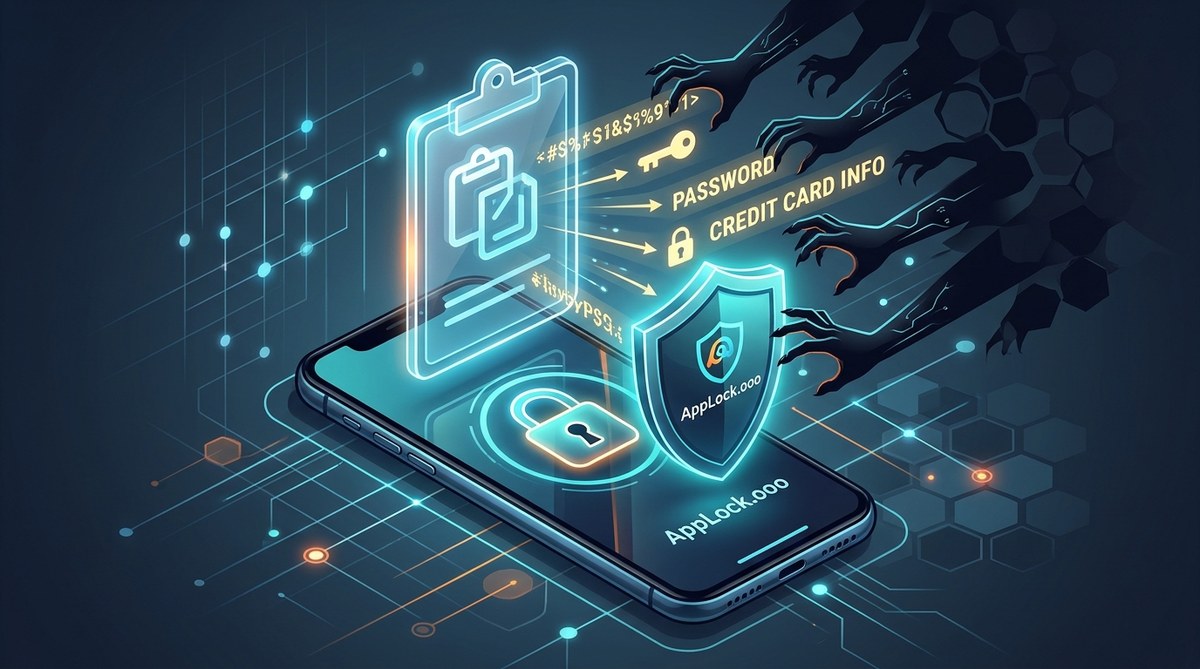
You copy a password from your password manager. You paste it into your banking app. Done, right? Not quite. That password you just copied is still sitting in your phone’s clipboard. And on Android, any app can read it without asking for permission. This isn’t a hypothetical risk. Malware, adware, and even seemingly innocent keyboard apps routinely scrape the clipboard to steal credentials, credit card numbers, and crypto wallet keys. The scariest part? You would never know it happened.
Your Android clipboard has no access control. Any app can read what you copied, including passwords, addresses, and financial data. To stop clipboard theft, use a password manager that auto-fills without copying, clear your clipboard regularly, and revoke clipboard access from suspicious apps. A dedicated app lock adds an extra layer of protection.
Why Your Android Clipboard Is a Security Risk
Android treats the clipboard as a shared public space. When you copy text, the operating system stores it in a global buffer that any app with standard permissions can read. Unlike iOS, which introduced clipboard warnings in recent versions, Android still lets apps silently monitor the clipboard in the background.
Think about what you copy during a normal day. You might copy a password from your manager, a bank account number from an email, a recovery seed phrase, or your Social Security number for a tax form. Every single one of those items becomes readable by any app you have installed.
Researchers have documented clipboard hijacking in the wild for years. In 2021, security firm Kaspersky reported that clipboard stealers were targeting cryptocurrency addresses. When a user copied a wallet address, the malware would replace it with the attacker’s address. The user would paste, send funds to the wrong wallet, and never notice until the money was gone. The same technique works for passwords.
How Clipboard Attacks Actually Work
A clipboard attack on Android typically follows one of these patterns:
- Direct reading: A malicious app continuously polls the clipboard. Every time you copy something new, the app logs it and sends the data to a remote server.
- Clipboard replacement: The app waits for a specific pattern (like a Bitcoin address or a password field) and swaps it with the attacker’s data.
- Background monitoring: Legitimate-looking apps, like keyboard utilities or clipboard managers, request clipboard access. Once granted, they siphon everything you copy.
The danger is amplified by Android’s permission system. Many apps request the “read clipboard” permission during installation. Users tap “Allow” without reading the prompt. After that, the app has carte blanche to watch everything you copy.
Signs Your Clipboard Has Been Compromised
You cannot always see a clipboard attack happening, but there are red flags to watch for:
- Pasting the wrong text: You copy your password, but when you paste, you get an old email address or a random string.
- Unexpected clipboard pop-ups: Some clipboard hijackers display ads or prompts when they detect copied text.
- Battery drain: Malware that polls the clipboard constantly can drain your battery faster than normal.
- Data breach notifications: If you use a breach monitoring service and suddenly see your passwords exposed, clipboard theft could be the vector.
How to Stop Clipboard Theft on Android
You do not need to be a security engineer to protect yourself. These steps are practical and take only a few minutes.
1. Use a Password Manager That Auto-Fills
The single most effective step is to stop copying passwords altogether. Modern password managers like Bitwarden, 1Password, or KeePassXC offer autofill features that insert credentials directly into login fields without touching the clipboard.
When you use autofill, your password never enters the clipboard buffer. An app that monitors the clipboard sees nothing. This is the gold standard for clipboard security on Android.
2. Clear Your Clipboard After Every Use
If you must copy something sensitive, clear the clipboard immediately after pasting. On most Android keyboards, you can tap the clipboard icon and select “Clear all.” Some third-party apps automate this process, but be careful which one you choose (more on that below).
3. Audit and Revoke Clipboard Permissions
Go to your Android settings and review which apps have permission to read the clipboard. Here is a step-by-step process:
- Open Settings on your Android device.
- Tap Privacy (or Security and Privacy on some versions).
- Select Permission manager or App permissions.
- Look for Clipboard or Read clipboard in the list.
- Review each app that has this permission. If you do not recognize the app or no longer use it, revoke the permission immediately.
- For apps you keep, ask yourself: does this app genuinely need clipboard access? A keyboard app might need it. A game or a flashlight app definitely does not.
4. Avoid Third-Party Clipboard Managers
Ironically, apps designed to enhance your clipboard can be the biggest threat. Many clipboard history apps request full read access to your clipboard and store your copied data locally or in the cloud. If that app gets compromised, your entire copy history is exposed.
If you need a clipboard manager, choose one that is open source, audited, and stores data encrypted on your device only. Even then, use it only for non-sensitive items like URLs or notes. Never let a clipboard manager store passwords.
5. Lock Your Apps with Biometrics
Even if an app on your phone tries to read the clipboard, a strong app lock can prevent it from accessing your sensitive applications. By using a tool like AppLock, you can require a fingerprint or face scan before your password manager, banking app, or email client opens. This stops clipboard malware from reading credentials even if it manages to monitor the clipboard, because the app lock prevents the malware from accessing the target app in the first place.
For more on this, check out our guide on how to lock individual apps with biometrics and prevent data breaches in 2026.
Common Mistakes That Leave You Vulnerable
Even security-conscious users slip up. Here are the most common clipboard security mistakes and how to avoid them.
| Mistake | Why It Is Dangerous | Better Approach |
|---|---|---|
| Copying passwords from a notes app | Notes apps often sync to the cloud, and the clipboard is readable by other apps | Use a password manager with autofill instead |
| Installing clipboard manager apps from unknown developers | These apps can log and exfiltrate everything you copy | Stick to well-known, open-source options or skip them entirely |
| Ignoring permission prompts | You grant clipboard access without reading the request | Always review permissions before tapping “Allow” |
| Not clearing the clipboard after use | Sensitive data lingers for anyone to read | Clear the clipboard immediately after pasting |
| Using the same password across sites | A single clipboard leak exposes multiple accounts | Use unique passwords for every account |
What to Do If Your Clipboard Data Has Been Stolen
If you suspect your clipboard has been compromised, act immediately.
- Change your passwords: Start with your email, banking, and any account that uses the password you last copied.
- Enable two-factor authentication: Add an extra layer of protection so a password alone is not enough.
- Run a security scan: Use a reputable Android security app to check for malware.
- Revoke clipboard permissions: Go through your app list and remove clipboard access from anything suspicious.
- Monitor your accounts: Watch for unauthorized logins or transactions over the next few weeks.
Expert advice: “Clipboard theft is one of the most underrated mobile threats. Users worry about phishing and malware, but they forget that the clipboard is a silent data leak. If you copy a password, assume something is watching. The only safe password is the one that never touches the clipboard.” — Mobile security researcher, 2026
Tools That Help You Stay Safe
You do not need to go it alone. Several tools and practices work together to create a strong defense.
- Password managers with autofill: As mentioned, this is your first line of defense. They bypass the clipboard entirely.
- App locking tools: Use AppLock to require biometric authentication before opening sensitive apps. This stops clipboard malware from accessing your credentials even if it is running.
- Clipboard cleaners: Some security suites include a feature to automatically clear the clipboard after a set time. Use these with caution and only from trusted developers.
- Android’s built-in clipboard viewer: Android 13 and later include a clipboard history feature. While convenient, it also means your copied data stays visible. Disable it if you handle sensitive information.
For a broader view of mobile safety, read our top mobile safety tips to protect your personal data from hackers.
A Simple Daily Routine for Clipboard Security
You can protect yourself with a few habits that take less than a minute each day.
- Morning check: Review your app permissions once a week. Look for any new apps that have clipboard access.
- Before copying sensitive data: Pause and ask if you can autofill instead. If you must copy, plan to clear the clipboard immediately.
- After pasting: Open your clipboard viewer and tap “Clear all.” Make this a reflex.
- Weekly audit: Check which apps have clipboard permissions and revoke any that are unnecessary.
For a more complete approach to mobile security, take a look at simple steps to strengthen your mobile privacy and keep personal data secure.
The Future of Clipboard Security on Android
Android’s clipboard model is overdue for an overhaul. Privacy advocates have called for mandatory permission prompts every time an app reads the clipboard, similar to how iOS handles camera and microphone access. Some Android custom ROMs and security-focused forks already implement this. Mainstream Android may follow, but as of 2026, the responsibility still falls on you.
Until Android builds better guardrails, your best defense is a combination of smart habits and the right tools. Do not wait for the operating system to save you. Take control of your clipboard today.
Your Clipboard Is a Doorway. Lock It.
Every time you copy a password, credit card number, or private message, you are handing that data to every app on your phone. That is a risk you can eliminate. Start by using a password manager that auto-fills. Clear your clipboard after every use. Audit your app permissions. And lock your sensitive apps behind biometric authentication.
Your data is worth the few seconds it takes to build these habits. Open your phone right now, check your clipboard permissions, and clear your history. That one action could be the difference between a secure account and a stolen identity.