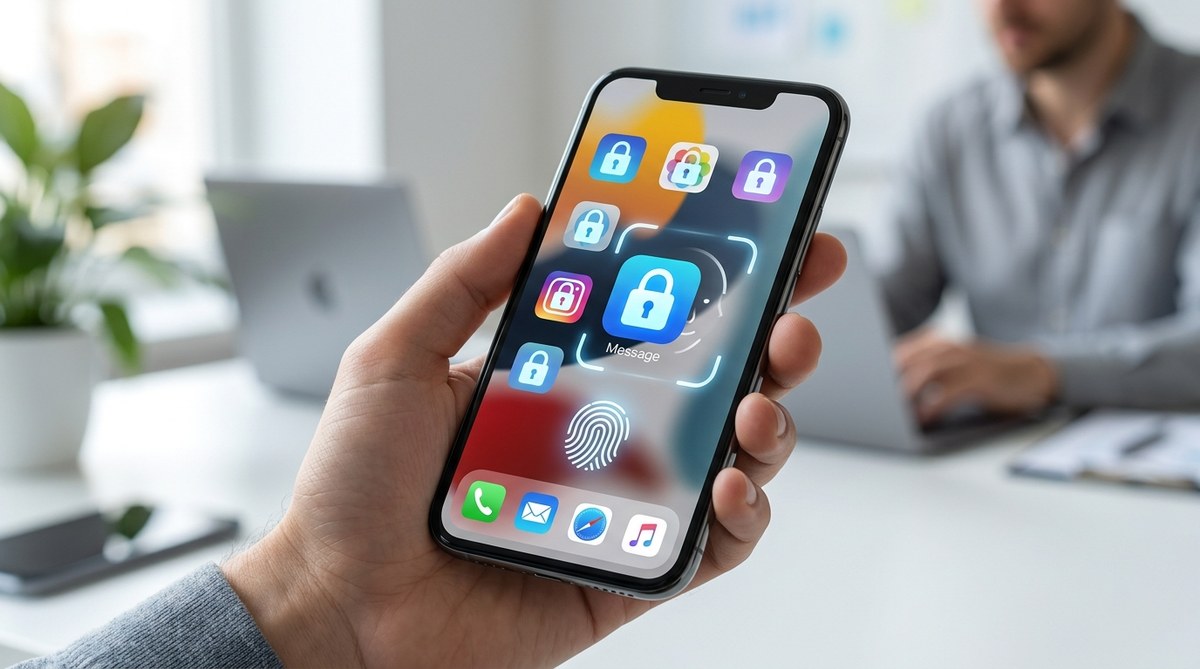
You hand your phone to a coworker to show a photo, and your stomach drops. Your banking app, your private messages, your email — all one tap away from prying eyes. That feeling of vulnerability is common, but it doesn’t have to be your reality. By locking apps with biometrics, you add a personal security layer that only you can pass. Fingerprint or face recognition stops anyone from sneaking into your sensitive data, even if your phone is already unlocked. In 2026, with data breaches on the rise and privacy tools getting smarter, this simple step can save you a world of hurt.
Locking individual apps with biometrics (fingerprint or face recognition) adds a critical security barrier that phone passcodes alone can’t provide. This guide shows you how to set it up on Android and iOS, avoid common setup mistakes, and protect your personal data from unauthorized access. In 2026, biometric app locking is the smartest, fastest way to prevent data breaches without sacrificing convenience.
Why a Passcode Isn’t Enough Anymore
Your phone’s lock screen is important, but it’s only a single door. Once it’s open, every app you own is exposed. A colleague borrowing your phone, a curious family member, or even a lost device can lead to leaked conversations, stolen financial info, or compromised social media. Biometric app locking adds a second lock on the apps that matter most.
Biometrics authenticate who you are — not what you know. A fingerprint or facial scan is far harder to duplicate than a four-digit code. In 2026, modern smartphones have advanced sensors that recognize your unique traits in milliseconds. Using them to secure individual apps turns your phone into a fortress with multiple vaults.
How to Lock Apps with Biometrics: Step by Step
Setting this up only takes a few minutes. The process is slightly different depending on your phone, but the core steps are the same. Follow this numbered guide to get started right now.
-
Choose a dedicated app locker or use built-in security.
Many phones now include native app locking in settings (Samsung Secure Folder, Xiaomi App Lock, Google’s built-in privacy). If yours doesn’t, install a trusted app like AppLock from a reputable developer. Look for one that supports both fingerprint and face unlock. -
Register your biometric data in system settings.
Go to Settings > Security & Privacy > Fingerprints (or Face Unlock). Follow the prompts to scan your finger or face. Most modern phones in 2026 require a backup PIN or pattern in case the sensor fails. -
Open your app locker and assign biometrics.
Inside the app locker, enable biometric authentication: set “Lock method” to “Fingerprint” or “Face ID.” Then choose which apps to protect. Typically you’ll see a list of all installed apps; toggle on the ones you want to secure — banking, messaging, email, photos, and notes. -
Test the lock on each app.
Close the app and reopen it. You should see a prompt to scan your face or finger. If it works, you’re set. If not, double-check that you gave the locker permission to draw over other apps and access accessibility services (common requirements).
That’s it. From now on, every time someone taps your banking app, they’ll meet a biometric wall. Only you can get in.
Common Mistakes People Make When Setting Up Biometric Locks
Even a great tool fails if you set it up wrong. Here are the most frequent errors and how to avoid them.
| Mistake | Why It’s Dangerous | The Fix |
|---|---|---|
| Using only one fingerprint | A single print leaves you vulnerable if that finger is wet, dirty, or injured. | Register at least two different fingers (both thumbs) and a backup PIN. |
| Disabling biometrics when face unlock fails | If you turn off biometrics after a few failed attempts, the app falls back to a simple PIN that can be guessed. | Keep biometrics enabled; use the fallback PIN only as a last resort. Set a strong alphanumeric PIN. |
| Not locking apps that auto-launch (like camera or dialer) | An unlocked camera app can expose your photos and contacts through quick actions. | Lock all apps that have personal data, even “harmless” ones like gallery or contacts. |
| Using the same PIN for biometric fallback and phone unlock | If someone sees you unlock your phone, they now have your lock screen PIN and can access secured apps. | Choose a different PIN for the app locker fallback. Make it unrelated to your phone passcode. |
| Installing a shady locker app from an unknown source | Malicious apps can steal your biometric data or display ads. | Use only well-reviewed lockers from the official app store. Check permissions — a locker should not need access to your contacts or location. |
Avoid these pitfalls, and your biometric lock will work as intended — silent, fast, and impenetrable.
Benefits of Biometric App Locking That You’ll Notice Immediately
- Speed: Unlock with a glance or a touch. No typing, no waiting. It’s faster than any password or pattern.
- Convenience: Your biometrics are always with you. No need to remember a dozen different PINs for each private app.
- Stronger security: Unlike passwords, biometric data can’t be phished or guessed. A hacker would need your actual finger or face.
- Peace of mind: Hand over your phone without anxiety. The person sees only what you allow.
- Selective protection: Lock just your finance and messaging apps, not everything. You keep normal apps open for convenience.
“In 2026, the best defense against unauthorized app access is tying authentication to a physical trait only you possess. Biometric app locking transforms your phone from a single-key vault into a personalized security system. Don’t wait for a breach to discover its value.”
— Dr. Sarah Lin, Mobile Security Researcher
Two More Ways to Strengthen Your App Security
App locking with biometrics is your first line of defense, but you can layer on more protection. Consider using a password manager for all your accounts — it makes using strong, unique passwords effortless. Our guide on top 5 password managers to secure your mobile devices in 2026 can help you choose the right one.
Also, review your app permissions regularly. Many apps request access they don’t truly need. Combined with biometric locks, pruning those permissions keeps your data locked down. Check out the best practices for locking apps and safeguarding personal data for a full checklist.
Your Move: Act Now, Not After a Breach
Data breaches and privacy violations are not abstract risks — they happen to real people every day. A friend loses their phone on the subway, and within hours, their bank account is drained because they never locked their banking app. A child accidentally sends embarrassing texts from a parent’s phone because the messaging app was open.
Locking apps with biometrics stops those scenarios cold. It’s a five-minute setup that pays dividends in sleepless nights avoided. In 2026, your smartphone is the key to your digital life. Make sure only you hold that key. Enable biometric app locking today, and give yourself the freedom to share your phone without sharing your secrets.