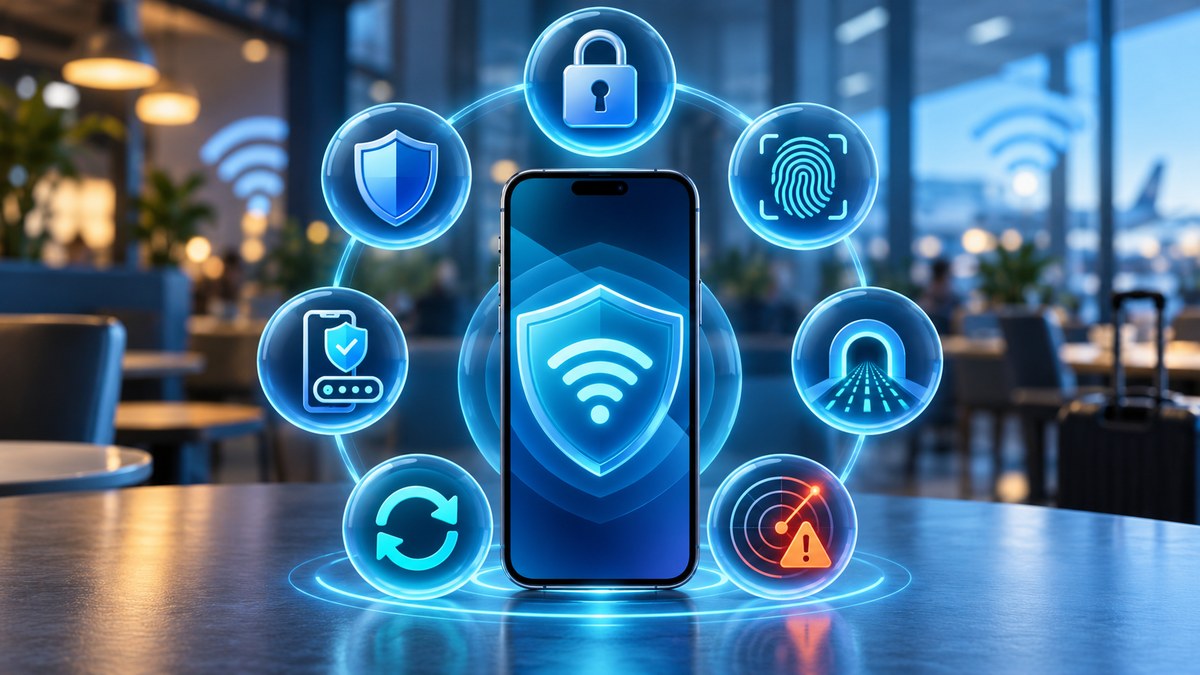
You are sitting in your favorite coffee shop. The latte is hot. The Wi-Fi is free. You connect without thinking. That simple action could expose your banking app, your email, and your private photos to a stranger at the next table. Public Wi-Fi is convenient, but it is also a playground for snoopers. The good news? You do not need to be a tech expert to stay safe. A few smart habits and the right app settings can lock down your data before you even open your browser.
Public Wi-Fi threats are real, but they are also preventable. This guide walks you through ten concrete actions: use a VPN, enforce HTTPS, turn off sharing, enable a firewall, update your apps, lock your apps individually, use a password manager, turn off Wi-Fi auto-connect, log out of accounts, and verify the network name. Follow these steps and your data stays yours.
Why Public Wi-Fi Puts Your Privacy at Risk
Public networks are open by design. Anyone can join. That means a hacker sitting in the same airport lounge can use free tools to see what websites you visit. They can even intercept your login credentials if the site is not encrypted. This type of attack is called a man-in-the-middle attack. It sounds dramatic, but it is surprisingly common.
The real danger is not the network itself. It is the lack of privacy. When you connect to a coffee shop or hotel network, you are sharing the same digital space with strangers. Without protection, your device sends data in plain text. That includes emails, messages, and even credit card numbers.
Your Public Wi-Fi Security Checklist
Let us break down the steps you need to take. Each one blocks a different angle of attack.
1. Use a VPN on Every Connection
A VPN (Virtual Private Network) encrypts everything your device sends and receives. Think of it as a private tunnel through the public internet. Even if a hacker intercepts your data, they will only see scrambled nonsense.
- Choose a reputable VPN provider. Free VPNs often log your data or sell it.
- Turn on the VPN before you connect to the Wi-Fi network.
- Keep it on the entire time you are online.
“A VPN is not optional for public Wi-Fi. It is the single most effective tool you can use to protect your privacy. Without it, your data is essentially postcards being read by everyone in the room.” — Security researcher at the Electronic Frontier Foundation
2. Force HTTPS Everywhere
HTTPS encrypts the connection between your browser and the website. Most sites use it by default now, but not all. You can force your browser to only use HTTPS.
- Install the HTTPS Everywhere browser extension (though most modern browsers include this feature natively).
- Look for the padlock icon in the address bar before you log in anywhere.
- Never enter a password on a page that shows “Not Secure.”
3. Turn Off File and Printer Sharing
Your laptop or phone might be set to share files with other devices on the same network. That is great for your home office. It is a disaster on public Wi-Fi.
For Windows:
1. Open Settings.
2. Go to Network & Internet.
3. Select your Wi-Fi network.
4. Turn off “File and printer sharing.”
For macOS:
1. Open System Preferences.
2. Click Sharing.
3. Uncheck everything.
For Android and iOS:
– These systems do not share files by default, but third-party apps might. Check your app permissions.
4. Enable Your Firewall
A firewall blocks unauthorized connections to your device. It is like a bouncer for your data. Most operating systems have one built in. Make sure it is on.
- Windows: Windows Defender Firewall is usually active. Double check in Settings > Security.
- macOS: Go to System Preferences > Security & Privacy > Firewall.
- Mobile: iOS and Android have built-in firewalls that are always on. Do not disable them.
5. Update Your Apps and Operating System
Hackers love old software. Security updates patch holes that attackers use to break in. Before you travel, update everything.
- Update your phone’s operating system.
- Update your browser.
- Update your banking and social media apps.
- Enable automatic updates so you do not have to think about it.
6. Lock Your Most Sensitive Apps
Even with a VPN, someone who gets physical access to your unlocked phone can open your banking app or email. You need an extra layer of protection on the apps themselves. This is where app locking comes in.
Use a tool like AppLock to add a PIN or biometric lock to individual apps. That way, even if you leave your phone on the table, your private data stays behind a second lock. This is one of the most effective security features] you can enable.
For more detail on this specific tactic, check out our guide on practices for locking apps and safeguarding personal data].
7. Use a Password Manager
Typing passwords on public Wi-Fi is risky. If a keylogger is running on your device or a fake login page tricks you, your password is gone. A password manager solves this.
- It generates strong, unique passwords.
- It autofills them so you never type them on a public network.
- It stores them encrypted, so even if your device is stolen, the passwords are safe.
For recommendations, see our list of the password managers for 2026].
8. Turn Off Wi-Fi Auto-Connect
Your phone or laptop probably remembers every Wi-Fi network you join. That is convenient at home. It is dangerous in public. Attackers can set up a fake network with the same name (called an Evil Twin attack). Your device connects automatically.
- On iPhone: Settings > Wi-Fi > turn off “Auto-Join.”
- On Android: Settings > Network & Internet > Wi-Fi > turn off “Connect automatically.”
- On Windows: Settings > Network & Wi-Fi > Manage known networks > remove old public networks.
9. Log Out of Accounts When You Are Done
Leaving yourself logged into your email or social media is like leaving your front door open. When you finish using a service on public Wi-Fi, log out manually.
- This forces the session to end.
- It prevents the next person who uses your device from accessing your accounts.
- It also stops some tracking cookies from persisting.
10. Verify the Network Name
Always ask a staff member for the exact Wi-Fi name and password. Do not guess. Hackers set up networks named “Free Airport Wi-Fi” or “Hotel Guest” to trick people. If the name looks suspicious, do not connect.
Common Mistakes vs. Smart Habits
Here is a table that shows what many people do wrong and what you should do instead.
| Common Mistake | Why It Is Dangerous | Smart Habit |
|---|---|---|
| Connecting to any open network | You cannot tell if it is a fake network. | Always verify the network name with staff. |
| Using the same password everywhere | One breach gives access to all accounts. | Use a password manager for unique logins. |
| Keeping file sharing on | Strangers can access your documents. | Turn off sharing before you leave home. |
| Skipping app updates | Old apps have known security holes. | Enable automatic updates on all devices. |
| Typing passwords manually | Keyloggers can capture every keystroke. | Use a password manager to autofill. |
| Leaving apps unlocked | A lost phone means lost data. | Lock sensitive apps with a PIN or biometrics. |
How to Spot a Fake Wi-Fi Network
Fake networks are the most common trap. Here are the signs to watch for.
- The network name is generic, like “Free Wi-Fi” or “Guest.”
- It requires no password at all.
- The signal is unusually strong (the hacker is sitting close).
- The login page looks slightly off or asks for personal information.
If you see any of these, stay away.
What to Do If You Think You Have Been Hacked
Act fast. The sooner you respond, the less damage is done.
- Disconnect from the Wi-Fi immediately.
- Turn off your device’s Wi-Fi and switch to cellular data.
- Change the passwords for your most important accounts (banking, email, social media).
- Run a security scan using your device’s built-in tools.
- Check for unfamiliar apps or browser extensions and remove them.
- Contact your bank if you used a credit card while on that network.
Build a Routine That Protects You Every Time
You do not need to memorize every detail. Build a simple pre-flight routine before you connect to any public network. Here is a sample checklist you can follow.
- [ ] VPN is on and connected.
- [ ] File sharing is off.
- [ ] Firewall is active.
- [ ] Apps are up to date.
- [ ] Sensitive apps are locked with a PIN or biometrics.
- [ ] Wi-Fi auto-connect is disabled.
- [ ] You have verified the network name with staff.
Make this routine a habit. It takes less than two minutes. It saves you from hours of damage control.
For a deeper look at how to protect your phone from all angles, read our article on to secure your mobile apps from hackers].
Your Data, Your Responsibility
Public Wi-Fi is not going away. Neither are the people who want to misuse it. But you have the power to stay safe. Every step you take, from turning on a VPN to locking your banking app, builds a wall between your private life and the stranger in the next seat.
Start today. Enable one new setting. Download one security tool. Lock one app. Then do it again tomorrow. Before you know it, you will have a full security routine that feels automatic. And the next time you sip that latte in a coffee shop, you can relax, knowing your data is protected.