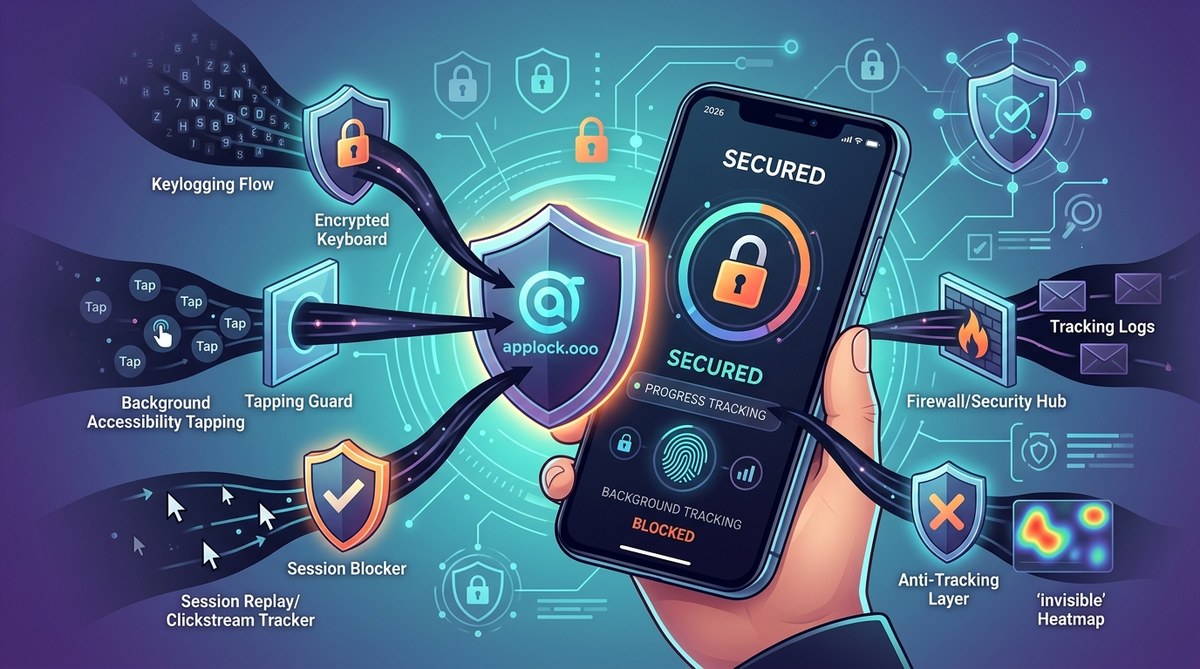
Your phone or computer knows a lot about you. But the really creepy part is how it learns. Every tap on your keyboard and every click of your mouse can be recorded, analyzed, and sold. You might think you are just typing a message, but an app could be logging every single letter. This is not paranoia. This is how modern software works. The good news is that you can fight back. Let’s look at the five sneakiest ways apps track your typing and clicks, and exactly how to block them in 2026.
Apps track your typing and clicks through five main methods: keyloggers inside permissions, JavaScript event listeners on websites, clipboard monitoring, heatmap analytics, and motion sensors. Each method captures different data, from passwords to browsing habits. Blocking them requires a mix of permission audits, browser extensions, and app-locking tools. You can stop most tracking in under ten minutes today.
The Silent Logger Buried in App Permissions
You have seen the permission pop-up. An app asks for access to your keyboard, your microphone, or your screen. Most people tap “Allow” without reading a word. That simple action can give an app permission to log every keystroke you make.
This is not limited to shady software. Legitimate apps sometimes include third-party code that monitors input. A keyboard app might record every word you type to improve its autocorrect. A game might log your clicks to study player behavior. The problem is that this data often leaves your device.
How to find and revoke keyboard permissions
- On your phone, open Settings and go to “Privacy” or “Security & Privacy.”
- Look for a section called “App Permissions” or “Permission Manager.”
- Scroll through the list of apps that have access to your input devices.
- Tap any app that should not need keyboard access and select “Revoke.”
- On a computer, check your system settings for “Input Monitoring” or “Accessibility” permissions.
A good rule of thumb is to ask yourself why a calculator app needs to see your keystrokes. It does not. If an app has no clear reason to monitor your typing, block it.
JavaScript Event Listeners That Watch Every Click
When you browse the web, every site you visit can run code in your browser. This code can listen for specific events, like a mouse click or a key press. Marketers call this “session replay.” They can see exactly where you hover, what you type, and what you delete before hitting send.
This is how apps track typing and clicks on the web without installing anything on your device. The data flows straight to a company’s server. They use it to figure out which headlines grab your attention and which buttons you hesitate to press.
Tools that block event listeners
- Use a browser extension that blocks JavaScript trackers. uBlock Origin and Privacy Badger are solid choices.
- Enable your browser’s built-in “Do Not Track” feature. It is not perfect, but it signals your preference.
- Switch to a privacy-focused browser like Firefox or Brave, which limit these listeners by default.
“Session replay scripts can capture form data before you hit submit. That means a typo, a half-written password, or a credit card number you deleted can still be saved.” – Privacy researcher at the Electronic Frontier Foundation
Clipboard Hijacking and the Data You Copy
Copying text is one of the most common actions we take. You copy a password from your password manager. You copy an address from an email. You copy a credit card number from a note. Apps can monitor your clipboard and read everything you copy.
This is especially dangerous on mobile devices. Many apps request clipboard access without a clear reason. A keyboard app might want to “paste” for you, but it can also read the last ten things you copied. In 2026, clipboard hijacking is one of the most overlooked privacy risks.
Common clipboard tracking techniques
| Technique | How It Works | What It Captures | How to Block It |
|---|---|---|---|
| Clipboard listener | App reads clipboard contents every few seconds | Passwords, addresses, links | Revoke clipboard permission in app settings |
| Auto-paste prompt | App asks to paste from clipboard on launch | Sensitive text you copied earlier | Deny the prompt every time |
| Background sync | App sends clipboard data to its server | All copied text | Use a clipboard manager with encryption |
| Form auto-fill tracking | Browser saves what you type into forms | Names, emails, payment info | Clear auto-fill data regularly |
A numbered process to secure your clipboard
- On Android, go to Settings > Privacy > Clipboard and turn off “Clipboard access for apps.”
- On iOS, review which apps have clipboard permission in Settings > Privacy > App Permissions.
- On a computer, install a clipboard manager that shows you which apps are reading your clipboard.
- Avoid copying sensitive data while using apps you do not trust.
You can also use a dedicated app lock to prevent unauthorized clipboard access. For more tips, check out our guide on best practices for locking apps and safeguarding personal data.
Heatmaps and Clickstream Recording
You might think you are anonymous when you browse the web. But many sites record your mouse movements and clicks in a heatmap. They see where you linger, what you ignore, and which buttons you almost clicked. This is not just for design. It is a form of behavioral tracking that builds a profile of your interests.
Apps on your phone do the same thing. They track which parts of the screen you tap and how long you hold your finger down. This data helps companies predict your next move. If you hover over a “Buy Now” button but do not click, the site knows you were interested. It can then target you with ads for that exact product.
How to block heatmap tracking
- Use a content blocker that stops tracking scripts from loading. Many ad blockers also block heatmap scripts.
- Disable JavaScript for sites you do not trust. This breaks some functionality but stops most tracking.
- Use a VPN in combination with a privacy browser to mask your browsing fingerprint.
If you want to go a step further, learn how to block app tracking in 2026 with a full setup guide.
Motion Sensors and Gyroscope Data
This one sounds like science fiction, but it is real. Many smartphones have gyroscopes and accelerometers. Apps can use these sensors to detect tiny vibrations from your fingers. When you tap a key on the screen, the phone shakes slightly. An app can analyze those vibrations to figure out what you typed.
Researchers have demonstrated that accelerometer data can be used to guess passwords with surprising accuracy. The app does not need to see your screen. It only needs to feel the vibrations. This technique is still rare, but it is growing as sensors become more sensitive.
Signs your motion data is being tracked
- An app requests access to your motion sensors without a clear reason.
- You notice unusual battery drain when using a specific app.
- The app has a history of privacy violations or data sharing.
What you can do about it
- Revoke motion sensor permissions for any app that does not need them. Games might need them. A note-taking app does not.
- Use a privacy-focused operating system that limits sensor access.
- Keep your device’s software up to date. Patches often close sensor-based tracking loopholes.
For a deeper look at securing your device, read our article on top strategies to secure your mobile apps from hackers.
Putting It All Together: Your Privacy Action Plan
You now know the five main ways apps track your typing and clicks. The next step is to take action. You do not need to be a tech expert. You just need to follow a simple routine.
A weekly privacy checklist
- Check app permissions on your phone and computer.
- Review which apps have access to your keyboard, clipboard, and motion sensors.
- Clear your browser’s cache and disable tracking cookies.
- Update your apps and operating system to the latest version.
- Run a quick scan with a privacy tool that flags tracking scripts.
The tools you need
- A good ad blocker for your browser.
- A permission manager app for your phone.
- A clipboard manager that encrypts your data.
- A VPN that blocks tracking at the network level.
When you combine these tools, you create a strong barrier between your input and the apps that want to record it.
Your Privacy Is Worth the Effort
Every keystroke and click tells a story about you. It reveals your passwords, your shopping habits, your deepest searches, and your most private conversations. The companies that track this data do not care about your wellbeing. They care about selling your behavior to the highest bidder.
You have the power to stop them. Start with one change today. Revoke a permission. Install a blocker. Review your settings. Then do it again next week. The more you practice, the easier it becomes. Before you know it, you will have built a digital life that respects your privacy. And that is a feeling no amount of convenience can replace.