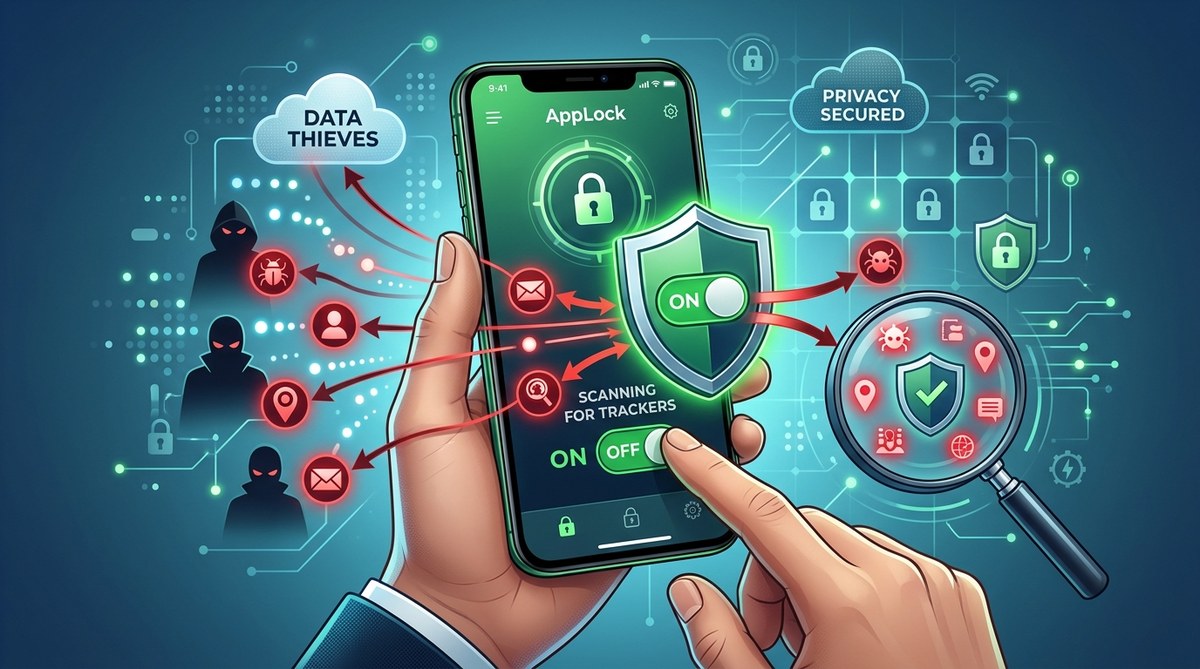
Your phone has a secret. It knows where you sleep, who you text, and what you buy. And some of that information is being sold to the highest bidder without your permission. The culprits are hidden app trackers. These small pieces of code sit inside your favorite apps and silently record your behavior. They track your location, your browsing history, even the way you type. The good news is you do not need to be a tech genius to find them. You just need to know where to look.
Hidden app trackers are small data collectors buried inside your apps that log your location, contacts, and habits without your clear consent. You can detect them by checking app permissions, using privacy scanners, and reviewing background activity. The fix is simple: revoke unnecessary permissions, uninstall suspicious apps, and use an app lock to block unauthorized access. This guide walks you through the entire process in plain English.
What Are Hidden App Trackers and Why Should You Care?
Hidden app trackers are not the same as viruses. They are legal pieces of software that app developers and third party advertisers embed into their code. Their job is to collect data about you. Think of them as digital tailgaters. They follow you from one app to another, noting every click and scroll.
For example, a flashlight app should not need your location. But many free flashlight apps in 2026 still ask for it. Why? Because they sell that location data to ad networks. That is a tracker at work. It is not there to make the flashlight brighter. It is there to make money off your privacy.
The real danger is that these trackers can build a profile of you. They learn your daily routine, your favorite coffee shop, your child’s school, and your work address. In the wrong hands, that information can be used for targeted scams or identity theft. That is why learning how to detect hidden app trackers is one of the most important skills you can develop this year.
The Hidden Tracker Detection Method
Here is a straightforward process you can follow right now. It takes about fifteen minutes and works on both iPhone and Android devices.
- Open your phone’s Settings app. Go to the section labeled “Privacy” or “Permissions.” On Android, look for “Permission Manager.” On iPhone, look for “Privacy & Security.”
- Scan the list of app permissions. Look for any app that has access to your microphone, camera, location, or contacts. Ask yourself a simple question: does this app need that permission to work? A map app needs your location. A weather app needs your location. A calculator app does not.
- Revoke anything that looks suspicious. Tap on the app and change the permission to “Deny” or “Ask Next Time.” If the app stops working properly, you can always turn it back on. But nine times out of ten, the app will work just fine without it.
This is the first line of defense. But trackers are sneaky. Some of them do not show up in the permissions list because they use other methods to collect data. That is where the next step comes in.
Using a Privacy Scanner to Find Hidden Trackers
A privacy scanner is a tool that reads the code of your apps and flags any known trackers. It is like a metal detector for your phone. You run it, and it tells you exactly which apps are sending data to third parties.
Here are the signs that a privacy scanner is working correctly:
– It lists each app and the trackers inside it by name.
– It shows you where the data is being sent (the server address).
– It lets you block the tracker or uninstall the app with one tap.
Some popular scanners available in 2026 include DuckDuckGo’s App Tracking Protection for Android and the built in App Tracking Transparency feature on iPhone. Both are free and easy to use.
When you run the scanner, pay attention to the results. You might be surprised to see that a simple game like a puzzle app contains trackers from five different advertising companies. That is a red flag. Your next move should be to uninstall that app and find a better alternative.
Common Tracker Red Flags You Can Spot Yourself
You do not always need a scanner. Sometimes your phone gives you clues that a tracker is active. Look for these signs:
- Battery drain. If an app is using a lot of battery even when you are not using it, a tracker might be running in the background.
- Data usage spikes. Check your cellular data usage in the settings. If a game or a wallpaper app is using gigabytes of data, it is probably sending your information somewhere.
- Unusual permissions. A recipe app that wants access to your contacts is a huge warning sign.
- Pop up ads that know too much. If you see an ad for a product you just talked about, a tracker on your phone likely heard you.
These signs are not proof, but they are strong indicators. When you see them, it is time to investigate.
Mistakes People Make When Trying to Block Trackers
Many people try to protect their privacy but end up making things worse. Here is a table that shows common mistakes and the correct approach.
| Mistake | Why It Fails | What to Do Instead |
|---|---|---|
| Using a free VPN from an unknown company | The VPN itself may contain trackers and sell your data. | Use a trusted, paid VPN with a no logs policy. Or use a privacy scanner instead. |
| Disabling all permissions for every app | Some apps will crash or stop working properly. | Revoke permissions one at a time and test the app. Only deny what is not needed. |
| Relying only on antivirus software | Antivirus apps often miss legal trackers because they are not malware. | Use a dedicated privacy scanner that specifically looks for trackers. |
| Ignoring system apps | Even apps that came pre installed on your phone can have trackers. | Check permissions for system apps too. Disable any you do not use. |
“The biggest mistake I see is people thinking that if an app is from the official app store, it is safe. That is not true. Many popular apps in the App Store and Google Play contain dozens of trackers. Always check permissions and use a scanner.” Privacy researcher quoted in a 2026 security report.
How to Lock Down Your Phone After Removing Trackers
Once you have found and removed the worst trackers, you need to seal the exits. That means locking your apps so that even if a tracker sneaks back in, it cannot access your personal data.
Start by using an app lock tool. This adds a password, PIN, or fingerprint scan to individual apps. For example, you can lock your messaging app, your banking app, and your photo gallery. Even if someone else picks up your phone, they cannot open those apps. And more importantly, a background tracker cannot access the data inside those locked apps.
For a deeper look at how to protect your apps from unauthorized access, check out this guide on how to strengthen your mobile app security against unauthorized access. It covers advanced settings like biometric locks and stealth mode.
You should also review your app permissions every month. Trackers evolve. An app that was clean in January might have added a tracker in a February update. Make it a habit to check.
The One Setting Everyone Should Change Right Now
There is one setting that stops most hidden trackers in their tracks. It is called “Background App Refresh” on iPhone and “Background Data” on Android. When you turn this off for an app, the app cannot run in the background unless you open it. That means trackers inside that app cannot send your data when you are not looking.
Here is how to do it:
– iPhone: Go to Settings > General > Background App Refresh. Toggle it off for any app that does not need to update in the background (games, shopping apps, social media).
– Android: Go to Settings > Apps > Select the app > Mobile data & Wi-Fi. Turn off “Background data.”
This is one of the most effective ways to stop hidden app trackers from stealing your data. It also saves battery life.
What to Do If You Find a Tracker You Cannot Remove
Sometimes you will find a tracker in an app you actually need. For example, your banking app might have a tracker for fraud detection. You cannot uninstall your banking app. In that case, you have a few options.
First, check if the app has a privacy setting that lets you opt out of data sharing. Many apps now include a “Do Not Sell My Personal Information” option. Look for it in the app’s settings menu.
Second, use an app lock to restrict the app’s access when you are not using it. This does not remove the tracker, but it limits when it can run.
Third, consider using a web browser instead of the app for that service. Many websites do not have the same tracking capabilities as their mobile app counterparts. For example, instead of using the Facebook app, use the mobile website. It is still functional, but it has far fewer trackers.
For more specific advice on locking down individual apps, read about the best practices for locking apps and safeguarding personal data. It includes step by step instructions for both iPhone and Android.
Taking Control of Your Privacy in 2026
Hidden app trackers are not going away. They are a part of the modern internet economy. But you do not have to be a victim. By following the steps in this guide, you have learned how to detect hidden app trackers and disable them. You have checked your permissions, run a privacy scanner, and locked down your most sensitive apps.
The most important thing is to stay consistent. Set a reminder on your phone for the first of every month. Spend ten minutes reviewing your apps. Revoke anything that looks wrong. Run a scanner. Update your app lock settings. That small habit will keep your personal data safe from trackers all year long.
Your phone belongs to you. Not to advertisers. Not to data brokers. Take back control starting today.