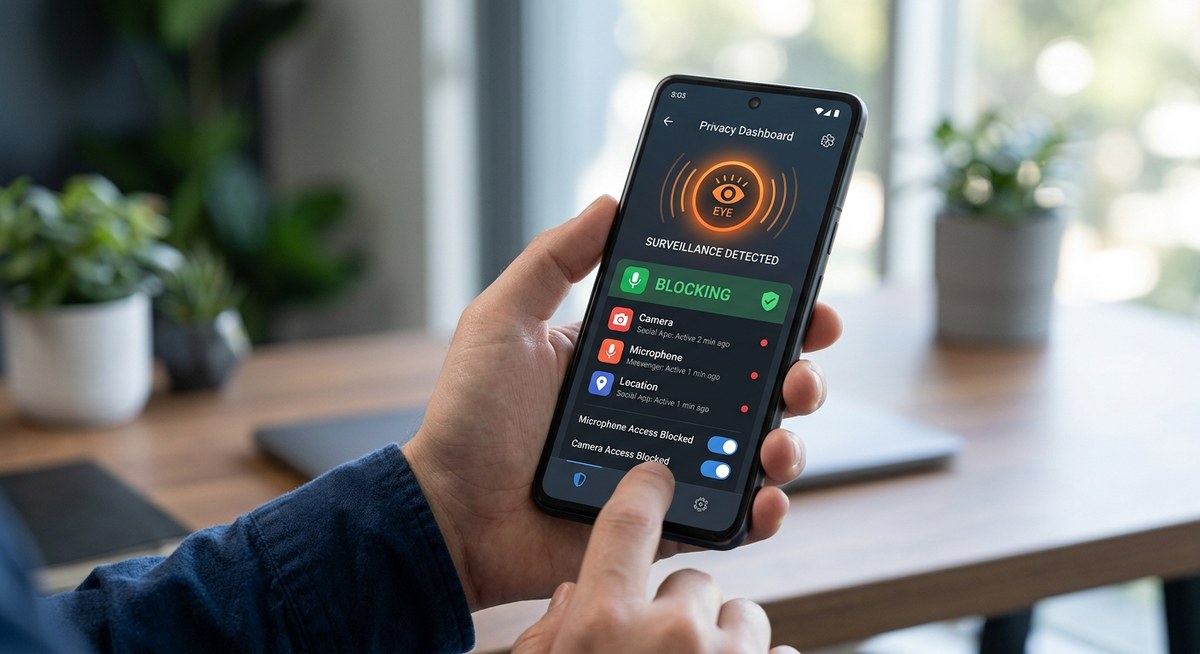
Your phone is always listening. That’s not a conspiracy theory. It’s a built-in feature of how modern apps work. But there’s a big difference between your phone waiting for “Hey Siri” and a third-party app covertly recording your conversations without permission. In 2026, the question isn’t just “could apps secretly record me?” but “how do I know for sure and stop it?”
Yes, some apps can secretly record you through microphone permissions, background processes, or hidden code. You can detect this by checking permission logs, using privacy monitoring tools, and reviewing data usage. Blocking requires revoking unnecessary permissions, using app locks like AppLock, and staying away from shady apps. This guide gives you step-by-step methods to take control of your microphone and stop hidden surveillance today.
The Real Risk of App Surveillance in 2026
Privacy scandals have made headlines for years, but the problem hasn’t gone away. Many apps still request microphone access for features that don’t need it. Social media apps, keyboard apps, and even flashlight apps have been caught collecting audio data to serve targeted ads or worse.
The risk isn’t just theoretical. Independent researchers have shown that apps can start recording without any visible indicator. Modern smartphones try to protect you with permission prompts and indicator dots (green or orange on iOS, green on Android), but these safeguards aren’t foolproof. Malicious apps can bypass them through clever permission requests or by exploiting background processes.
You don’t need to be a target of state surveillance to worry. Everyday apps from reputable companies have been found sending audio snippets to third-party servers. In 2025, a popular weather app was caught recording ambient noise to infer location and activity. The company claimed it was “improving weather predictions,” but users weren’t told.
So, how do you know if your apps are secretly recording you? Let’s break it down.
Signs Your Apps Might Be Recording You
Before you start investigating, look for these red flags:
- Unexpected permission prompts. Did an app you haven’t used in months suddenly ask for microphone access? That’s suspicious.
- Battery drain. Apps that record continuously use extra power. If your battery dies faster than usual and you haven’t changed your habits, something may be running in the background.
- Data usage spikes. Audio files chew up bandwidth. Check your cellular data breakdown in settings. If an app you rarely use has uploaded gigabytes, it might be sending recordings.
- Microphone hot when idle. On iPhone, a green dot in the status bar means an app is using the microphone. On Android, a green icon appears in the notification bar. If that dot shows up when you’re not on a call or using voice features, take note.
- Strange behavior during calls. If you hear clicks or static during phone calls, it could be another app intercepting audio.
Not every sign guarantees surveillance, but they’re worth investigating.
How to Detect Hidden Recording: A Step-by-Step Guide
Here’s a practical process to find out if an app is secretly using your microphone. Do these steps in order.
-
Review microphone permissions in settings. On iOS, go to Settings > Privacy & Security > Microphone. You’ll see a list of apps that have requested access. Turn off any that don’t need it. On Android, go to Settings > Apps > Permission Manager > Microphone. Look for apps with background permission enabled. Disable it unless the app requires voice input all the time (like a voice assistant).
-
Check privacy indicator logs. On iOS 15.4 and later, you can see a history of microphone and camera usage. Go to Settings > Privacy & Security > Microphone > Record App Activity. This shows when each app accessed the microphone in the last seven days. On Android, you need a third-party tool like Access Dots (available on the Play Store) to log microphone usage.
-
Use a network monitoring app. Apps like NetGuard (Android) or Little Snitch (macOS) can show you real-time connections. If an app sends data to unexpected servers while you’re not using it, that’s a red flag. You can also use a VPN with logging features to inspect traffic.
-
Examine app behavior with airplane mode. Turn on airplane mode and open the suspicious app. If it behaves normally (no errors about no internet), it’s probably not sending recordings. If it crashes or shows connection errors, it might be trying to upload.
-
Install a privacy scanner. Apps like DuckDuckGo’s Privacy Browser for Android can block trackers and show you which apps are accessing sensors. On iOS, the built-in Privacy Report in Safari offers some insight.
Common Techniques Apps Use to Record You (and How to Spot Them)
Not all secret recording is obvious. Here’s a table of common methods and how to identify them.
| Technique | How It Works | How to Detect It |
|---|---|---|
| Background recording with indicator bypass | App starts recording when screen is off, hiding the indicator dot by using a system-level exploit. | Use a privacy monitoring tool that checks for microphone access even when the indicator is hidden. |
| Legitimate feature, hidden stream | App requests microphone for a feature (e.g., voice memos) and sends audio to third-party servers for analysis without telling you. | Check data usage per app. If a voice memo app uploads more data than you record, something’s wrong. |
| Permission abuse through SDKs | An app includes a third-party SDK (like an ad library or analytics tool) that activates the microphone without the app developer’s full knowledge. | Use a network monitor to see if connections go to advertising or analytics domains while the app is idle. |
| Aggressive permission request | App asks for “always” microphone access instead of “while using.” Many users tap “allow” without reading. | Review permission types in settings. Change “Always” to “Only While Using the App” for any app that doesn’t need background access. |
| Camouflaged as system UI | Malicious app displays a fake permission prompt that looks like a system dialog, tricking you into granting access. | Never grant permissions from outside the official Settings app. Reject any prompt that appears unexpectedly. |
How to Block Secret Recording on Your Phone
Once you’ve detected suspicious activity, it’s time to lock things down. Follow these actions.
- Revoke microphone permissions immediately. For any app you don’t fully trust, remove microphone access. You can always re-enable it when you actually use the feature (like recording a voice note).
- Use AppLock to protect permission settings. If someone else has access to your phone, they could re-enable permissions. Locking apps like AppLock with biometrics prevents unauthorized changes. Check out best practices for locking apps and safeguarding personal data for a deeper guide.
- Disable background activity for apps you rarely use. On iOS, go to Settings > General > Background App Refresh and turn it off for suspicious apps. On Android, go to Settings > Apps > [App Name] > Mobile data & Wi-Fi and toggle off background data.
- Install a firewall app. Android users can use NetGuard to block internet access for specific apps when they’re not in use. This prevents any uploaded audio even if the app does record. iOS users can use a VPN with firewall rules, but it’s less granular.
- Keep your operating system updated. Both Apple and Google patch permission bypass exploits regularly. Install updates as soon as they’re available.
- Consider using a privacy-focused DNS. Set your phone to use NextDNS or Cloudflare’s 1.1.1.1 with blocking lists. This can stop connections to known tracking servers.
Expert Advice: “The easiest way to stop apps from recording you is to never grant microphone permission unless you’re actively using a voice feature. If an app requests it during setup for something unrelated, say no. You can always enable it later if needed. Most people don’t need their calculator app to hear them.” — Sarah K., mobile security researcher at a university cybersecurity lab.
The Role of App Lock in Privacy Protection
A good app lock does more than keep nosy friends out. It can also protect your privacy settings from being changed. If you lock your Settings app or the individual permission managers, no one can re-enable microphone access without your fingerprint or face.
In 2026, many app lock apps also include a privacy scan feature. They show you which apps have dangerous permissions and let you revoke them in one tap. Some even monitor microphone usage in real time. That’s why combining an app lock with permission management is your strongest defense.
For a step-by-step on setting up biometric app locks, read how to lock individual apps with biometrics and prevent data breaches in 2026.
What to Do If You Find an App Secretly Recording You
Discovery is only half the battle. If you confirm an app is recording without your knowledge, act immediately.
- Delete the app. Don’t just force stop it. Uninstall it completely. The app may have left leftover files, but removal stops active recording.
- Report it. In the US, you can file a complaint with the Federal Trade Commission (FTC) at reportfraud.ftc.gov. Also report the app to the App Store or Google Play Store.
- Change your passwords. If the app had access to your accounts, an attacker might have captured audio that includes passwords spoken aloud. Change passwords for any accounts you accessed near the phone.
- Run a malware scan. Use Malwarebytes (available for iOS and Android) or Bitdefender to check for spyware. These tools can catch apps that hide their intentions.
- Restore from backup (if needed). In extreme cases, you may need to wipe your phone and restore from a backup made before you installed the app. Make sure your backup doesn’t include the malicious app.
Staying Ahead in 2026: New Threats to Watch
The cat-and-mouse game continues. This year, researchers have spotted apps that use ultrasound beacons (inaudible to humans) to communicate between devices and trigger recording. Another new trick is abusing the “Live Captions” accessibility feature on Android to capture audio without a full microphone permission. Both require aggressive countermeasures.
To protect against these, keep your phone’s accessibility settings locked down. Turn off “Live Caption” if you don’t use it. Disable any features that allow apps to listen for ultrasonic triggers. And always read permission dialogs carefully. If an app asks for “body sensors” or “nearby devices” and you don’t see why, search online for that app’s specific permissions.
Also, consider using a hardware mic blocker. Devices like the Mic-Lock (a small plug that goes into the headphone jack and physically disconnects the microphone) are still effective on phones with audio jacks. For newer phones without a headphone jack, you’re limited to software controls.
Take Back Your Privacy Starting Today
You don’t have to live with the fear that your phone is a listening device. By following the detection and blocking methods above, you can know exactly what’s happening inside your phone. The key is staying proactive: check permissions monthly, monitor data usage, and use tools like AppLock to lock down critical settings. Privacy isn’t a one-time setup. It’s a habit.
Start with the most step: open your phone’s microphone permissions right now. Review every app on the list. Revoke anything that looks suspicious. Then install an app lock that protects your settings. Your conversations are yours. Keep them that way.