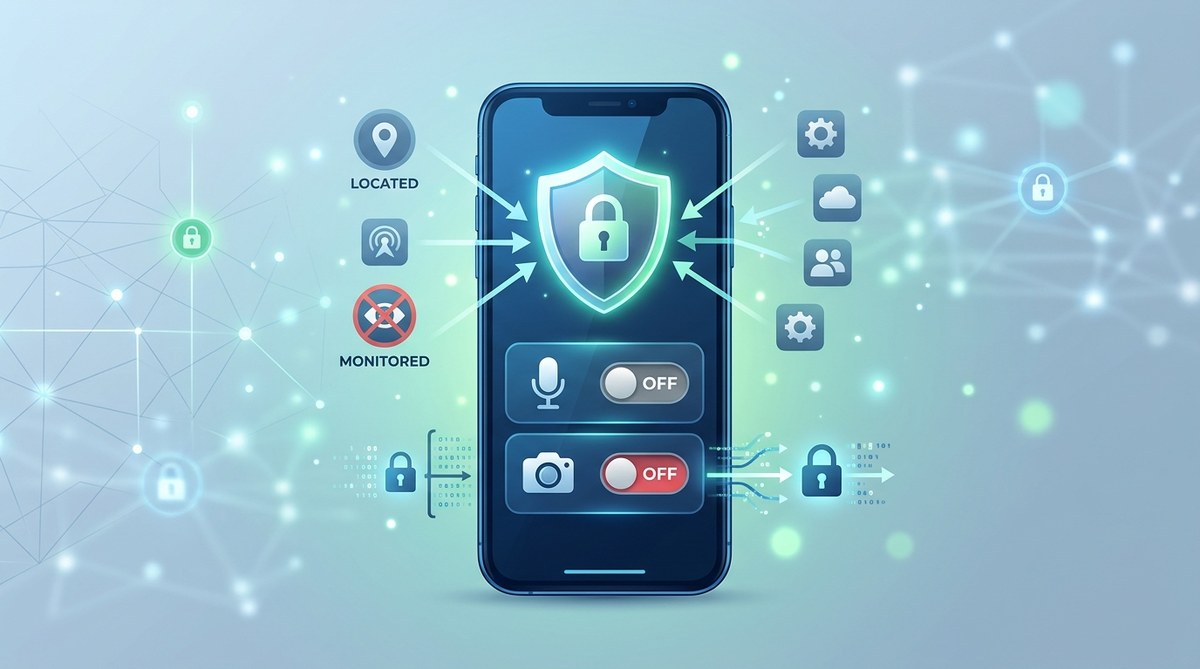
Your phone’s camera and microphone are always listening. That might sound like the setup for a sci-fi thriller, but it’s a real concern for anyone who uses a smartphone or laptop. Apps you installed months ago might still have permission to turn on your camera or mic without asking again. The good news is you can lock this down in a few minutes. This guide shows you exactly how to stop apps from accessing your camera and microphone on your devices.
You can stop apps from accessing your camera and microphone by checking app permissions in your device settings. On iPhone, go to Settings > Privacy and turn off toggles per app. On Android, visit Settings > Privacy > Permission Manager. On Windows, use the camera and microphone sections in Settings > Privacy. On macOS, check System Preferences > Security & Privacy. Do this every few months to stay safe.
Why This Matters More in 2026
Apps ask for permission once, and many of us tap “Allow” without thinking. A weather app probably doesn’t need your camera, but it might ask for it anyway. Once granted, that permission stays active until you revoke it. In 2026, with more apps using AI features that rely on sensors, the risk of unauthorized access has grown. A 2025 study from the Pew Research Center found that nearly 40% of smartphone users had at least one app with permissions they didn’t remember granting. That includes camera and microphone access.
Blocking these permissions isn’t just about privacy. It’s about stopping apps from collecting audio or video in the background. That data can be used for targeted ads, sold to data brokers, or worse. The steps below work for the most common devices.
How to Stop Apps From Accessing Your Camera and Microphone on iPhone
Apple gives you fine-grained control over which apps can use your sensors. Here’s how to check and revoke access.
- Open Settings on your iPhone.
- Scroll down and tap Privacy.
- Select Camera from the list. You’ll see every app that has requested camera access. Toggle off any app you don’t want to use your camera.
- Go back and select Microphone. Repeat the same process.
| Device | Camera Setting Path | Microphone Setting Path |
|---|---|---|
| iPhone | Settings > Privacy > Camera | Settings > Privacy > Microphone |
| Android | Settings > Privacy > Permission Manager | Settings > Privacy > Permission Manager |
| Windows | Settings > Privacy & Security > Camera | Settings > Privacy & Security > Microphone |
| macOS | System Preferences > Security & Privacy > Privacy tab | System Preferences > Security & Privacy > Privacy tab |
One important note: Some system apps, like the Phone app, will always have access. That’s normal. You only need to worry about third-party apps you don’t trust.
How to Stop Apps From Accessing Your Camera and Microphone on Android
Android’s permission system has improved a lot. In 2026, you can manage everything from one central place.
- Open Settings on your Android phone.
- Tap Privacy.
- Select Permission Manager (the name may vary slightly depending on your phone manufacturer, but it’s usually under Privacy).
- Tap Camera to see all apps with camera access. Revoke any that don’t need it.
- Tap Microphone and do the same.
Some Android phones also let you block access entirely. Look for a toggle that says “Block all camera access” or “Block all microphone access.” This is useful if you want to stop all apps from using your sensors unless you manually allow them.
Expert tip: If you use an Android phone from Samsung, LG, or Xiaomi, check for a “Permission Manager” in the Security section. Some manufacturers add their own layer of privacy controls on top of Android’s default settings.
How to Stop Apps From Accessing Your Camera and Microphone on Windows
Windows 10 and 11 have a dedicated privacy panel. Here’s how to use it.
- Open Settings (the gear icon).
- Click Privacy & Security.
- Click Camera in the left menu. You’ll see a list of apps that have requested camera access. Toggle off any that shouldn’t have it.
- Click Microphone in the left menu. Repeat the process.
Windows also shows you which app is currently using the camera or microphone. If you see an app using your camera when you’re not in a video call, that’s a red flag. Revoke its permission immediately.
For extra security, you can turn off the camera entirely using Device Manager. But that’s more advanced. The settings above cover 99% of cases.
How to Stop Apps From Accessing Your Camera and Microphone on macOS
Mac users have a similar control panel.
- Open System Preferences.
- Click Security & Privacy.
- Click the Privacy tab.
- Select Camera in the left menu. Uncheck any apps you don’t want using your camera.
- Select Microphone and uncheck apps there too.
macOS also shows a green dot next to the camera app when it’s in use. If you see that dot and you’re not using your camera, check which app is running. You can force quit it from the Activity Monitor.
Common Mistakes to Avoid
Even after you revoke permissions, some apps can regain access through updates or reinstallation. Here are the most common mistakes people make:
- Granting permissions during setup without reading. Always ask yourself: does this app really need my camera?
- Ignoring app updates. Some updates reset permissions to default. Check your settings after every major update.
- Using apps from unknown developers. Stick to official app stores and check reviews before installing.
- Not checking permissions on shared devices. If your kids or coworkers use your device, they might install apps that request camera or mic access.
What to Do If You Find a Suspicious App
If you see an app with camera or microphone access that you don’t recognize, take these steps:
- Revoke its permission immediately.
- Uninstall the app.
- Run a security scan using your device’s built-in tools or a trusted third-party app.
- Change your passwords for any accounts linked to that app.
For a more thorough approach, you can use an app lock tool that adds an extra layer of protection. Check out our guide on best app locking strategies to secure your private apps and files for more details.
How Often Should You Check Permissions?
Set a reminder to check your app permissions every three months. Tie it to something you already do, like changing your smoke alarm batteries or updating your passwords. A simple calendar reminder works fine.
You can also use a privacy audit tool that scans your device and lists all permissions. Many of these tools are free and take less than two minutes to run. For a complete walkthrough, see our guide on how to audit every app permission on your phone in under 10 minutes.
Your Privacy Is Worth the Effort
Taking five minutes to check your camera and microphone permissions is one of the easiest ways to protect your privacy. You don’t need to be a tech expert. Just follow the steps above for your device. Once you’ve done it, you’ll have peace of mind knowing that no app is secretly watching or listening.
If you want to go further, consider using a dedicated app locking tool that prevents unauthorized access even if an app tries to bypass system permissions. Our guide on top mobile privacy tools every user should use for better data protection can help you choose the right one.
Start with your phone today. Then check your laptop. You’ll be surprised how many permissions you can safely revoke.