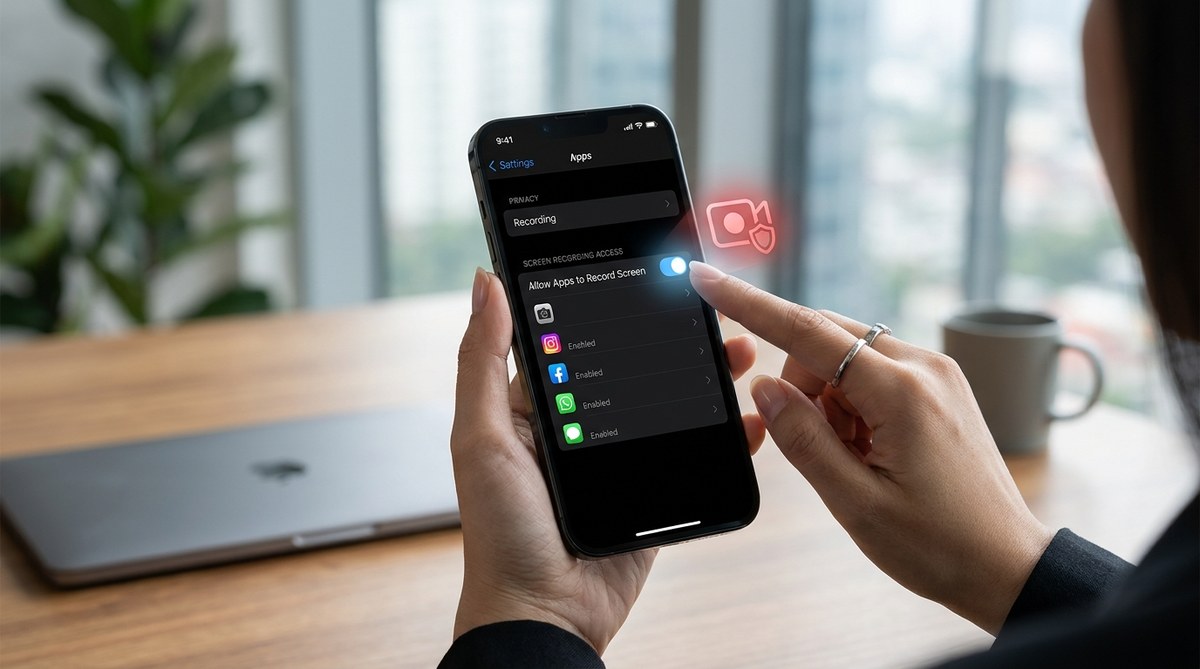
Your phone has a camera, a microphone, and a screen that records everything you do. You probably already worry about the camera and the mic. You close your laptop lid. You put a sticker over the front lens. You check which apps have access to your microphone. But there is another sensor on your phone that can see everything you type, every photo you scroll past, and every password you enter. It is your screen itself. And a growing number of apps are using a hidden setting to record your screen without you ever knowing.
A single accessibility permission called “screen recording” or “screen capture” is being abused by apps on both iPhone and Samsung devices. This setting allows apps to record your screen without showing any indicator light or notification. You can check which apps have this permission right now, and you can revoke it. The fix takes less than two minutes once you know where to look.
The permission that looks harmless
Operating systems like iOS and Android include a feature that was designed for good reasons. People with visual impairments use screen readers that need to capture what is on the display. Developers record their app workflows to show bugs. Tech support agents ask you to share your screen so they can help.
The problem is that the same permission that makes those things possible can also be used for something else entirely. An app that has the “screen recording” or “screen capture” permission can watch your activity without any visible sign. No red dot appears in the status bar. No banner slides down from the top of the screen. The app just records.
On an iPhone, this permission falls under the “Screen Recording” or “Screen Capture” toggle in your privacy settings. On a Samsung Galaxy phone running Android, it is buried in the “Permissions Manager” or inside the “Accessibility” section. Both systems allow you to grant this permission to individual apps, and both systems make it very easy to forget you ever gave it.
How apps are using it to spy on you
Let us be clear about what an app can see when it has screen recording permission. It can capture everything that appears on your display. That includes your text messages, your banking app balance, your two-factor authentication codes, your private photos, and your email inbox.
Some apps ask for this permission openly. A note-taking app might request it so you can record a lecture. A game might want it so you can share a replay. But other apps request it in the background during installation, and they never tell you why. They bundle the permission inside a long list of requests and hope you tap “Allow” without reading.
Researchers have found cases where shopping apps, social media apps, and even flashlight apps requested screen recording permission. The flashlight app does not need to see your screen to turn on your phone’s LED. There is no legitimate reason for a calculator app to record your display. But those requests are happening, and users are granting them.
How to check which apps can record your screen
You can find out right now which apps on your phone have this dangerous permission. The steps are different for iPhone and Samsung, but both are straightforward.
On an iPhone (iOS)
- Open the Settings app.
- Scroll down and tap Privacy and Security.
- Tap Screen Recording or Screen Capture (the exact label depends on your iOS version).
- You will see a list of every app that has permission to record your screen.
- Tap each app and toggle the permission to Off.
If you do not see a “Screen Recording” option in the Privacy menu, use the search bar at the top of Settings and type “screen recording.” iOS will take you directly to the correct page.
On a Samsung Galaxy phone (Android)
- Open Settings.
- Tap Privacy.
- Tap Permission Manager.
- Look for a category called Screen Recording or Accessibility Recording.
- Tap it to see the list of apps.
- Tap any app you do not trust and select Remove or Deny.
Android does not always group these permissions in one place. If you do not see a Permission Manager option, try searching “screen recording” in the Settings search bar. You can also check individual app permissions by going to Apps, tapping the app you want to inspect, and selecting Permissions.
Common mistakes that leave you exposed
Even privacy-conscious users make errors that keep this permission active. Here are the most common ones.
| Mistake | Why it is dangerous | What to do instead |
|---|---|---|
| Tapping “Allow” without reading the permission list | You grant screen recording to apps that do not need it | Read every permission request before tapping Allow |
| Assuming only the camera or mic can spy on you | Screen recording captures passwords and private data | Check your screen recording permissions regularly |
| Thinking a trusted brand would never abuse permissions | Brands sell data or get acquired by companies that do | Treat every permission as a risk, even for big names |
| Forgetting to check after a major OS update | Updates sometimes reset permissions or add new ones | Audit your permissions after every iOS or Android update |
What to do if you find an app recording without permission
If you open your privacy settings and see an app that has screen recording permission and you did not give it knowingly, take these steps.
- Revoke the permission immediately. Follow the steps above to turn it off.
- Check what the app has already captured. Some apps store recordings locally. Open the app and look for a “Recordings” or “History” section. If you find files, delete them.
- Uninstall the app. If the app was recording without telling you, it is not safe to keep on your phone.
- Change your important passwords. If the app had access to your screen, it may have captured passwords, PINs, or recovery codes. Change those from a different device.
- Report the app. On the App Store or Google Play Store, leave a review that warns others. You can also report the app to the platform for violating privacy policies.
“Screen recording permissions are one of the most overlooked attack vectors on modern smartphones. Users spend hours securing their camera and microphone, but they never check who can see their display. That is a blind spot that every privacy audit should cover.” – Mobile security researcher, 2026
A simple routine for staying safe
You do not need to become a security expert to protect yourself. You just need a routine. Here is a bulleted list of checks you can run once a month.
- Open your phone’s privacy settings and look for any screen recording permission.
- Review the list of apps that have that permission.
- Revoke permission for any app that does not absolutely need it.
- Uninstall apps you do not recognize or no longer use.
- Update your phone’s operating system to the latest version.
- Read permission requests carefully before tapping “Allow” on any new app.
This routine takes about five minutes. It is one of the most effective ways to stop apps recording screen without permission, and it works on both iPhone and Samsung devices.
Why this matters more in 2026
The privacy landscape has shifted. In 2026, more apps are pushing the boundaries of what they can collect. Advertisers want to see your shopping behavior. Data brokers want to know which news articles you read. Malicious actors want to capture your login credentials. Screen recording is a direct pipeline for all of that information.
At the same time, operating systems are making it harder for users to find these permissions. They bury them in accessibility menus or inside long lists of toggles. The average person does not know where to look. That is by design. The easier it is to hide a permission, the more likely users are to leave it on.
You do not have to fall for that. Now you know where the setting lives. You know how to check it. And you know what to do if you find something suspicious.
Take control of your screen
Your screen shows your most private information. Your bank balance, your medical records, your private messages, your login codes. No app should be recording that without your explicit knowledge and consent.
Start right now. Open your phone’s settings and check your screen recording permissions. If you find an app that does not belong there, revoke its access. Then set a monthly reminder to do the same check again.
For more ways to lock down your device, check out our guide on top strategies to secure your mobile apps from hackers. You can also learn how to spot and stop hidden app permissions that leak your data in 2026. And if you want a deeper look at which apps are the worst offenders, read our article on are your apps secretly recording you? how to detect and block hidden surveillance.
Your phone belongs to you. Your screen belongs to you. Make sure the apps on it remember that.