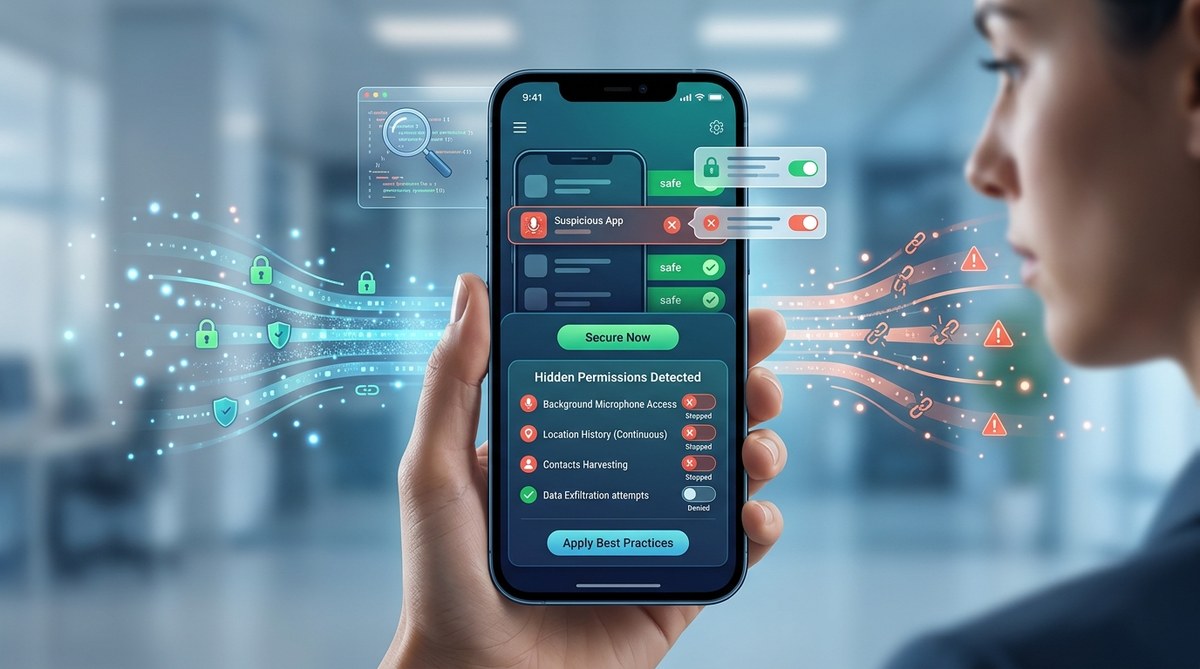
Your flashlight app is tracking your location. Your weather app is reading your contacts. That puzzle game you downloaded is listening through your microphone. These are not glitches or conspiracy theories. They are hidden app permissions, and they are actively leaking your private data. By the end of this guide, you will know exactly how to spot these data leaks and shut them down for good.
Hidden app permissions are one of the most overlooked privacy risks on modern smartphones. Apps routinely request access to contacts, location, camera, and microphone even when those features are unnecessary. This opens the door for data harvesting, tracking, and identity theft. This article provides a practical, step-by-step method to identify and remove hidden permissions. You will also learn how app locking tools can prevent unauthorized data access. Take control of your privacy today in 2026.
Why Hidden App Permissions Are a Serious Privacy Problem
Most people tap "Allow" without reading the permission prompt. It feels harmless. But those permissions create a direct pipeline from your phone to data brokers, advertisers, and sometimes hackers.
When an app has permission it does not need, it can silently:
- Read your contact list and upload names and numbers to a remote server.
- Track your precise GPS location every few minutes and sell that data.
- Record audio or video in the background.
- Access your photo library and scrape metadata.
The term hidden app permissions data leak describes exactly this: permissions that were granted by you (or by default) that now expose your data to parties you never intended. In 2026, mobile threat reports show that over 70% of free apps request at least one permission completely unrelated to their core function. A calculator app does not need your camera. A wallpaper app does not need your microphone. Yet these requests appear all the time.
The real danger is that many users never revisit their permissions after install. That one tap from two years ago is still active, still leaking.
How to Spot Hidden Permissions on Your Phone
You do not need to be a security expert to find these leaks. Every smartphone has a privacy dashboard built into the operating system. On Android, look for Permission Manager in the Settings app. On iOS, check Privacy & Security. Both give you a bird's eye view of every permission type and which apps have access.
Start by scanning these five permission categories:
- Location: Which apps can see where you are right now? Weather apps, maps, and ride sharing make sense. A photo editor or a game does not.
- Camera: Flashlight apps, note taking apps, and social media are common offenders. Anything that can record you without the screen on.
- Microphone: Voice assistants, recording apps, and phone calls. But a shopping app or a news app has no business listening.
- Contacts: Messaging and email apps are expected. A single player game should never see your address book.
- Photos and Media: Apps that edit or share photos need this. A banking app or a fitness tracker likely does not.
Go to your phone's permission list right now. Look for apps you do not even remember installing. Surprised? Good. That is the first step.
Step-by-Step Audit: Revoking Dangerous Access
Follow this process for every app on your phone. It takes about 15 minutes and can stop a hidden app permissions data leak immediately.
-
Open Settings and go to Apps or Application Manager. On most Android phones, this is under Settings > Apps. On iPhone, go to Settings > Privacy & Security.
-
Select each app individually. Look at the permission list. Ask yourself: "Does this app absolutely need this to work?" If the answer is no, revoke it.
-
Revoke all permissions that are not essential. Tap the toggle to deny. Do not worry about breaking the app. You can always re enable a permission later if the app stops working.
-
Pay special attention to "Always" or "While using the app" settings. Change location from "Always" to "While Using" or "Ask Next Time". For camera and microphone, only allow when the app is open.
-
Delete apps you no longer use. An app sitting on your home screen for months still has active permissions. Uninstall it completely. This removes all permissions in one move.
-
Set up monthly reminders. Put a calendar event on the first of each month. Spend five minutes repeating this audit. Data leaks happen gradually, but a monthly check catches them early.
Common Permissions That Frequently Leak Data
Not all permissions are equal. Some are far riskier than others. The table below shows typical permission types, the risk they pose, and the best setting to use.
| Permission Type | Risk Level | Recommended Setting |
|---|---|---|
| Location (GPS) | High | Ask next time or While using. Never Always. |
| Camera | High | While using the app. Deny if not needed. |
| Microphone | High | While using the app. Deny otherwise. |
| Contacts | Medium | Allow only if app sends messages. Deny for anything else. |
| Phone (call logs, dial) | High | Deny unless it is your actual dialer. |
| SMS | High | Deny except for SMS/messaging apps. |
| Storage / Photos | Medium | Allow only for photo editors, gallery apps, or file managers. |
| Calendar | Low | Allow for calendar apps only. |
| Body Sensors (health data) | Medium | Allow only for fitness or medical apps. |
The most dangerous pattern is when an app asks for multiple high risk permissions at once. A simple game that wants location, camera, microphone, and contacts is almost certainly collecting data to sell. Revoke everything and consider deleting the app.
Expert advice from the Electronic Frontier Foundation: "If an app needs a permission to show you ads, the permission is too broad. Advertising networks do not need your precise location or your contact list. They just need a device ID. Deny any permission request that seems unnecessary, and if the app becomes unusable, find a better alternative."
Warning Signs Your Data Is Already Leaking
Sometimes you do not even need to look at permissions. The phone itself tells you something is wrong. Watch for these clues:
- You see targeted ads for something you only talked about, never searched. That is a sign an app's microphone permission is being used in the background.
- Your phone battery drains faster than usual. A permission like location tracking or camera inactivity can keep the device awake.
- Data usage spikes without explanation. Apps that leak data send it in small bursts to remote servers.
- You receive random spam texts or calls that know your name or address. Your contact list or SMS data may have been scraped.
- An app you rarely use suddenly updates its privacy policy and asks for new permissions. That is a red flag.
If you notice any of these, run a full permissions audit immediately. Then consider using a dedicated app lock tool to add an extra barrier.
The Role of App Locks in Preventing Data Leaks
Even after you revoke permissions, some apps find ways to bypass restrictions. That is where an app lock comes in. By locking individual apps with a PIN, pattern, or biometrics, you stop anyone (including the app itself) from launching and accessing data without your consent.
For example, you can lock your banking app, your messaging app, and your photo gallery. Even if a malicious app tries to request data from those locked apps, it will be blocked. This is especially useful for apps that have access to sensitive data like passwords or health records.
To get started, check out our guide on best practices for locking apps and safeguarding personal data. It covers both Android and iOS methods in detail.
App locks also help if your phone is lost or stolen. A thief cannot open your locked apps, so your data stays protected even if the device itself is unlocked.
Building a Long-Term Privacy Strategy
A single permissions audit is not enough. Data leaks evolve. Apps change their behavior with updates. New apps request permissions you never saw before. You need a system that protects you month after month.
Here is a simple but effective plan:
- Weekly: Review any app that asked for a new permission. iOS and Android notify you when an app gains a permission after an update. Do not ignore those alerts.
- Monthly: Do the full audit described above. Revoke permissions that are no longer needed.
- Quarterly: Uninstall apps you have not used in 90 days. Every unused app is a potential leak.
- Yearly: Review your entire app library. Consider replacing free apps with privacy respecting alternatives.
Additionally, keep your operating system and apps updated. Developers often patch security flaws that could be used to bypass permissions. Updates also bring new privacy features, like one time permissions and permission auto reset.
For an even stronger defense, read our guide on top mobile privacy tools every user should use for better data protection. It lists VPNs, ad blockers, and permission managers that work alongside your system settings.
Keep Your Phone Yours
Hidden app permissions are not going away. App stores are getting better at catching bad actors, but the responsibility still falls on you. Every time you install a new app, ask yourself: "Does this app really need that permission?" If the answer is no, deny it. And if the app becomes angry or refuses to work, delete it.
You own your phone. You own your data. Do not let a flashlight app decide where you live, who you talk to, or what you say. Review your permissions today, set up a monthly routine, and use an app lock as your safety net. That is how you stop a hidden app permissions data leak for good.