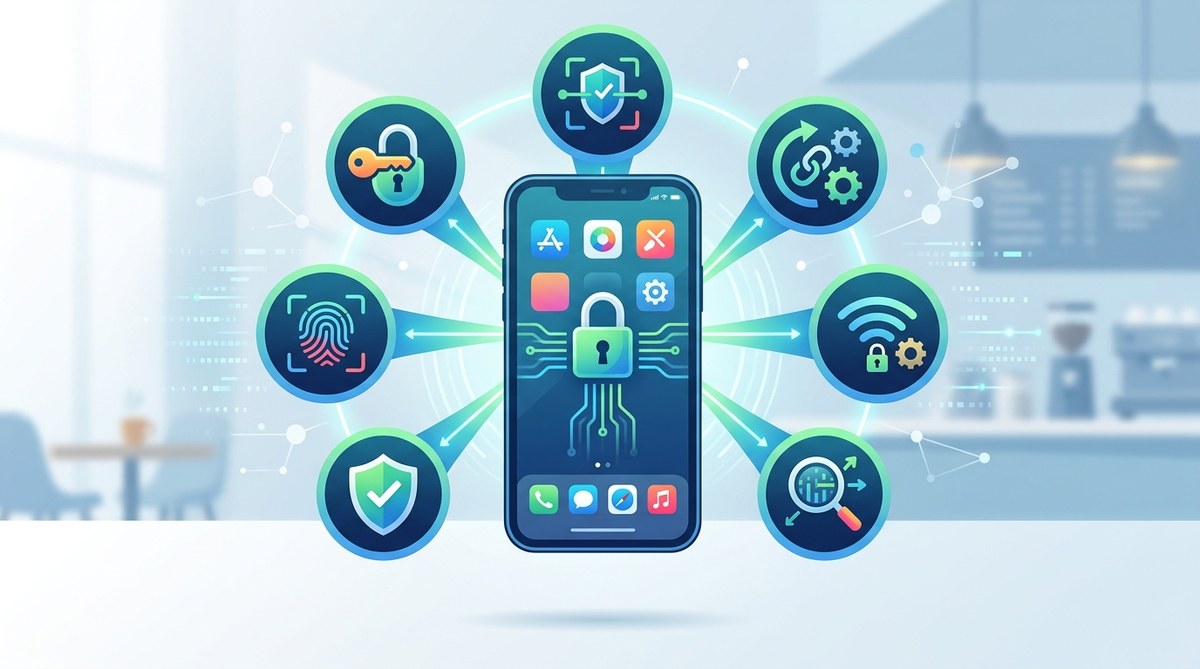
You just landed at JFK, your flight was delayed, and now you need to answer three urgent emails before the next meeting. You grab a table near the power outlet at the airport Starbucks, connect to “Free Airport WiFi,” and start typing. That moment feels like a lifesaver. But that open network is also a hunting ground. Every year, more travelers and remote workers learn this the hard way. In 2026, public Wi-Fi hotspots are faster and easier to join than ever, but the risks haven’t disappeared. They’ve evolved. The good news? You don’t need to be a cybersecurity expert to stay safe. A few simple habits, some preflight settings on your phone, and one or two smart tools can make public Wi-Fi nearly as secure as your home network.
Public Wi-Fi is not inherently safe, but you can dramatically lower your risk with a short checklist. Flip on a VPN before you connect, turn off file sharing and auto-join, force HTTPS in your browser, and lock sensitive apps with biometrics. Treat every open network like a crowded elevator: keep your private business to yourself. The seven steps in this guide take less than five minutes to apply and can save you from identity theft, data loss, and snooping.
Why Public Wi-Fi Is Still a Risk in 2026
Remember when people said “just use HTTPS and you’re fine”? That advice is outdated. Yes, HTTPS encrypts the traffic between your browser and a website. But hackers now use more subtle tricks. They set up fake hotspots with names like “Marriott_Guest” or “Starbucks_Free” that look identical to the real one. Once you connect, they can see every site you visit, inject malware into downloads, or even hijack your active sessions. This is called an “evil twin” attack, and it’s getting common in busy places like convention centers and hotel lobbies.
Another rising threat in 2026 is DNS poisoning on public networks. A compromised router can redirect your banking website to a fake login page that looks totally authentic. You type your password, and within seconds the hacker has it. Public Wi-Fi also opens the door for “packet sniffing” tools that capture unencrypted data flying nearby. Even if a site uses HTTPS, some apps still send data over HTTP. That includes your messaging app’s metadata, photo uploads, or location pings.
Remote workers face extra exposure. You might log into your company’s Slack, Google Drive, or CRM system from a cafe. If an attacker steals your session cookie, they can impersonate you inside those accounts. No password required. That’s why relying on the network’s own security is never enough.
Your 7-Step Public Wi-Fi Security Checklist
Apply these steps in the order listed. Each one closes a specific gap that attackers exploit.
-
Turn on a VPN before you connect. A Virtual Private Network creates an encrypted tunnel for all your device’s traffic. Even on a fake hotspot, the hacker sees only gibberish. Install a reputable VPN service and set it to auto-launch when you join an untrusted network. Do not connect to anything until the VPN shows it’s active.
-
Disable automatic Wi-Fi connectivity. Your phone probably remembers every network you’ve ever used and will rejoin them automatically. That convenience is a danger. In your Wi-Fi settings, toggle off “Auto-Join” for public networks and forget them after each use. Only approve connections manually.
-
Turn off file sharing and AirDrop. Both Windows and macOS turn on network discovery and file sharing by default in home mode. Before you hit “Join,” switch your network profile to “Public” or “Guest.” That shuts down SMB sharing and Bluetooth-based transfers. On an iPhone, set AirDrop to “Contacts Only” or “Receiving Off” while in public.
-
Enable a firewall and app permissions review. Your device’s built-in firewall helps block unsolicited inbound connections. On Windows, ensure the Windows Defender Firewall is on. On Mac, enable the firewall in System Settings. Then review app permissions: does your note-taking app really need local network access? Revoke anything that looks suspicious. For an extra layer, consider using https://applock.ooo/top-mobile-privacy-tools-every-user-should-use-for-better-data-protection/ to monitor background data usage.
-
Force HTTPS everywhere. Install a browser extension like HTTPS Everywhere (or enable the built-in “Always Use Secure Connections” in Chrome). This tells your browser to refuse unencrypted HTTP connections. Even if a site supports HTTPS, some pages load mixed content. The extension blocks that.
-
Lock sensitive apps with biometrics. Your banking app, email, and password manager hold the keys to your digital life. Use your phone’s face ID, fingerprint, or a PIN to lock them individually. If your device is lost or snatched at a coffee shop, those apps stay sealed. Learn how to https://applock.ooo/how-to-lock-individual-apps-with-biometrics-and-prevent-data-breaches-in-2026/ on both Android and iOS.
-
Use a password manager and two-factor authentication. A password manager auto-fills credentials only on legitimate domains, so a fake login page won’t trick it. Pair that with 2FA (preferably an authenticator app, not SMS) for every important account. Even if a hacker steals your password, they can’t get in without the second factor.
Common Public Wi-Fi Mistakes (And How to Fix Them)
The table below shows the most frequent slipups travelers make and the simple corrections.
| Mistake | What Happens | The Fix |
|---|---|---|
| Joining a network without verifying the name | You connect to an evil twin hotspot and hand over your data | Ask a staff member for the exact SSID, or look for official signage |
| Sending sensitive info over an unencrypted app | Passwords, credit card numbers, and private messages fly in plain text | Only use apps that support end-to-end encryption; skip mobile banking on public Wi-Fi |
| Leaving Bluetooth and Wi-Fi on after leaving the hotspot | Your device continues broadcasting probes, which can be tracked | Turn off Wi-Fi and Bluetooth when you step away from the cafe or gate |
| Using the same password for multiple sites | One breach gives hackers access to your email, bank, and social media | Use a password manager to generate unique passwords for each account |
How Hackers Exploit Open Networks (And What That Looks Like)
Imagine you’re at a hotel bar after a long flight. You connect to “Hotel_Guest_WiFi” and start browsing news. A few tables away, someone runs a tool called Wireshark. They see every webpage request, every image load, and any unencrypted authentication tokens. That tool costs nothing and is legal to run.
“The biggest misconception is that public Wi-Fi is safe because the network page says ‘secured.’ That only means the login page uses encryption. Once you’re in, all traffic is fair game unless you bring your own encryption layer.” — Jessica Tran, former network security engineer (now a privacy consultant)
Hackers also use “session hijacking” to steal your active cookies. If you’re logged into Twitter or LinkedIn, a hacker can copy your session cookie, paste it into their browser, and instantly become you. They can post, message, and access private data without your password. This is why step six (lock apps) and step one (VPN) are so critical. A VPN encrypts the entire session, making cookie theft nearly impossible.
Another tactic: “malvertising” pop-ups that appear out of nowhere. You visit a seemingly normal site, a fake “Your device is infected” banner pops up, and you click it. Suddenly, malware is downloading. On public Wi-Fi, these attacks are more aggressive because the network has no content filter.
Remote Workers: Extra Precautions for the Road
If you work remotely, your laptop is a treasure box for attackers. Corporate VPNs help, but they don’t protect personal browsing or devices that have company apps installed. Here are a few remote-specific tips for 2026:
-
Use a dedicated travel router. Devices like the GL.iNet GL-MT300N-V2 let you create your own private Wi-Fi network. You plug it into the hotel Ethernet (or join the hotel Wi-Fi), and all your devices connect through it. The router runs a built-in VPN client, so every gadget is protected automatically.
-
Separate work and personal profiles. Most laptops allow a separate user account for work. Log into that account only when doing company tasks. Keep personal accounts free from corporate data access.
-
Disable location services for unknown apps. Some apps leak your location through public Wi-Fi beacons. Review location permissions and set them to “While Using” or “Never” for apps that don’t need it.
-
Run a security check once a month. https://applock.ooo/7-signs-your-apps-are-compromised-and-what-to-do/ helps you spot anomalies like unknown outgoing connections or battery drain that could signal a breach from a previous public network exposure.
Building a Long-Term Habit
The real secret is consistency. It takes only one lapse to get burned. Make a pre-flight ritual: before you sit down at a cafe or board a plane, open your phone and toggle the settings mentioned above. After a few trips, it becomes automatic. You can also https://applock.ooo/best-practices-for-locking-apps-and-safeguarding-personal-data/ to set up shortcuts that disable file sharing and enable VPN with one tap.
Public Wi-Fi isn’t going away. Neither are the threats. But with these public Wi-Fi security tips front of mind, you can work, browse, and stay in touch without losing sleep over who’s watching.
Stay Safe, Stay Connected
You shouldn’t have to choose between productivity and privacy. The steps in this guide take less than five minutes and cost next to nothing. A VPN subscription runs about five dollars a month. A travel router is a one-time purchase under fifty dollars. The peace of mind you gain is priceless.
Next time you settle into that airport seat, remember: the network is not your friend. You are your own firewall. Lock down your device before you click “Connect,” and you’ll walk away with nothing compromised but your coffee order.