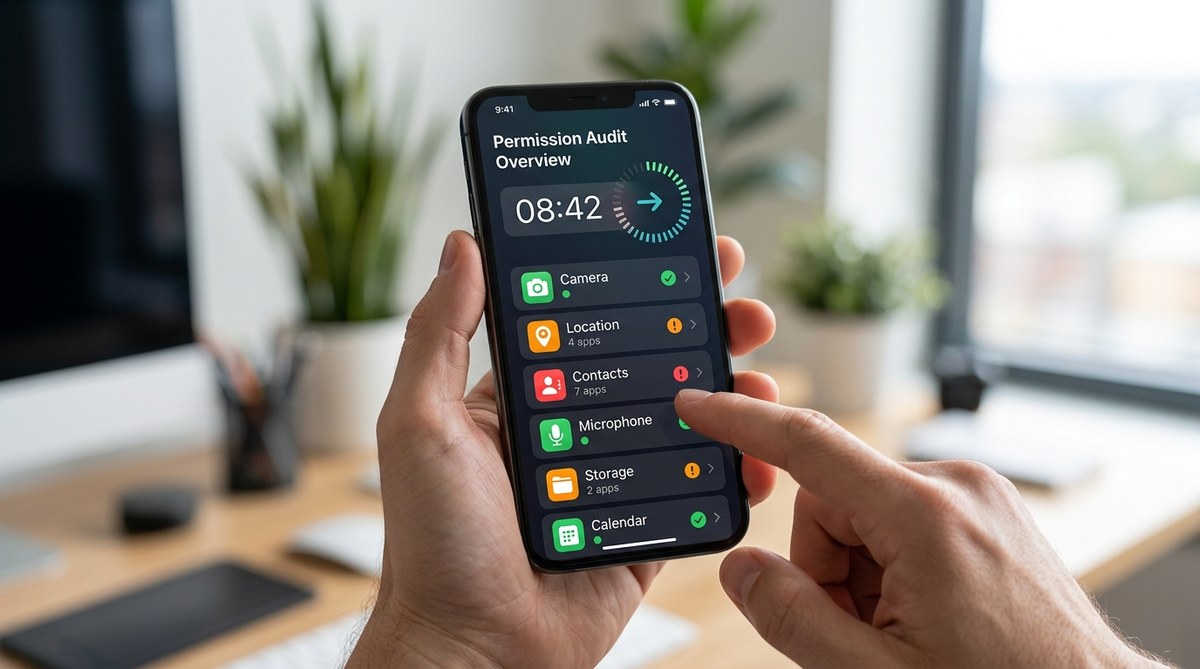
Your phone holds a massive amount of personal data. Your location history, your private photos, your contact list, and even your microphone access are all sitting there, waiting for apps to ask permission. Most people tap “Allow” without a second thought. That flashlight app you used once probably still has access to your camera. That old game from 2020 might still be reading your contacts. It takes less time than you think to clean this up and take control.
You can audit every app permission on your phone in under ten minutes by following a simple checklist. Start with the most sensitive permissions like camera, microphone, and location. Then move through your app list and revoke anything that looks suspicious or unnecessary. Doing this once a season keeps your data safe from prying apps.
Why App Permissions Matter More Than You Think
Every time you install an app, it asks for certain permissions. Some requests make sense. A navigation app needs your location. A photo editor needs your camera roll. But many apps ask for far more than they need. A simple weather app might request access to your Bluetooth. A wallpaper app might want to see your contacts.
When you grant these permissions, you hand over a key to your personal data. The app can then collect, store, or even sell that information. In 2026, data brokers are more aggressive than ever. They buy up location histories and contact lists to build detailed profiles on you. A single forgotten permission can leak your daily routines, your home address, and your social circle.
The good news is that you do not need to be a tech expert to fix this. Both iPhone and Android phones have built-in menus that show every permission you have ever granted. You just need to know where to look.
The 10-Minute Permission Audit Plan
Set a timer for ten minutes. Grab your phone and follow these steps. You will be surprised how much control you can reclaim.
Step 1: Open Your Permissions Dashboard
On an iPhone, go to Settings > Privacy. This screen shows a list of every sensitive sensor and data type your apps can access.
On an Android phone, go to Settings > Privacy > Permission Manager. Some Android versions call this App Permissions under the Apps section.
This is your command center. From here you can see which apps have access to your microphone, camera, location, contacts, and more.
Step 2: Revoke the Most Dangerous Permissions First
Start with the permissions that pose the highest risk. These are the ones that can listen, watch, or track you without your knowledge.
- Microphone: Go through the list of apps that have microphone access. Do you have a voice assistant app like Alexa or Google Assistant? That makes sense. Do you see a random game or a coupon app? Revoke it immediately.
- Camera: Same rule applies. Only keep apps that genuinely need your camera. Social media apps, video call apps, and document scanners are fine. Delete access for anything else.
- Location: This is a big one. Many apps track your location in the background even when you are not using them. Turn off location access for apps that do not need it. Weather apps, maps, and ride-sharing apps are reasonable. Everything else should be set to “While using the app” or “Ask every time.”
- Contacts and SMS: Apps that read your contacts can spam your friends and family. Revoke this for any app that does not need to connect you with other people.
Step 3: Scan Your Full App List
Now go back to your main app list in settings. On iPhone, scroll down to App Permissions or App List. On Android, look under Apps > See all apps.
Look for these warning signs:
- Apps you do not recognize at all
- Apps you installed more than a year ago and have not opened since
- Apps that came pre-installed on your phone that you never use
- Apps with generic names like “Scanner” or “Weather”
- Apps that have multiple permissions across different categories
For each suspicious app, tap on it and look at its permissions. If you see anything that looks excessive, revoke it. If the app is totally unused, delete it entirely.
Step 4: Use a Permission Checklist Table
Here is a simple table to help you decide what to keep and what to kill.
| Permission | Safe to keep for | Revoke immediately for |
|---|---|---|
| Camera | Social media, video calls, photo editors | Games, flashlight apps, wallpaper apps |
| Microphone | Voice assistants, recording apps, video apps | Random games, shopping apps, news apps |
| Location | Maps, weather, ride-sharing, food delivery | Games, social media (when not needed), photo apps |
| Contacts | Messaging apps, email apps, social networks | Games, photo editors, note-taking apps |
| Storage | Cloud storage, photo backup, file managers | Games, simple utilities, single-purpose apps |
| SMS | Two-factor authentication apps, banking apps | Games, social media, any app that sends spam |
Expert advice: If an app has a permission that makes you say “Why would it need that?” then revoke it. Your gut feeling is usually right. A calculator app does not need your location. A simple note app does not need your contacts. Trust your instinct.
Step 5: Check Third-Party Logins
Many apps let you sign in with Google, Facebook, or Apple. When you do that, you often grant the app access to your profile data. This includes your name, email address, and profile picture. Some apps even get access to your friends list.
On an iPhone, go to Settings > Accounts > Sign-in & Security > Third-party access. On Android, go to Settings > Google > Manage your Google Account > Security > Third-party apps with account access.
Review every app on this list. If you see an app you no longer use, remove its access. This does not delete your account, but it stops the app from pulling fresh data from your profile.
Common Mistakes People Make During an Audit
Even well-meaning people slip up. Here are the most common errors and how to avoid them.
- Revoking permissions for apps you actively use. If you use a navigation app every day, it needs your location. Do not revoke it unless you want to type in your address every time.
- Forgetting about smart home apps. Apps for your thermostat, smart lights, or security cameras often have persistent permissions. Check these too.
- Ignoring system apps. Your phone’s built-in apps like the weather widget or the default music player may have permissions you never noticed. You can often restrict these without breaking anything.
- Only checking once. Permissions change when apps update. A new version of an old app might ask for more access. Set a reminder to do this audit every three months.
What to Do After You Finish the Audit
Once you have revoked everything unnecessary, you are not done. You need to build a habit. Here is how to maintain your privacy going forward.
- Read permission prompts carefully. When you install a new app, do not just mash “Allow.” Read what it wants. If it asks for something weird, say no.
- Use the “Ask every time” option. On Android, you can set location access to “Ask every time.” On iPhone, you can set location to “While using the app.” This gives you control in the moment.
- Delete apps you do not use. An app cannot abuse a permission if it is not on your phone. If you have not opened an app in six months, delete it.
- Use a privacy-focused app lock. If you want an extra layer of protection, consider using a tool that locks individual apps behind a PIN or biometric scan. This prevents anyone who picks up your phone from opening sensitive apps.
For more in-depth protection, check out our guide on top strategies to secure your mobile apps from hackers. It covers additional steps like encryption and two-factor authentication.
How to Spot Hidden Permissions That Leak Your Data
Some permissions are sneaky. They hide in plain sight. Here are a few to watch for.
- Clipboard access. Some apps can read everything you copy to your clipboard. This includes passwords, credit card numbers, and private messages. Be careful with apps that request this permission.
- Notification access. Apps with notification permissions can see when you receive messages from other apps. This can leak your activity patterns.
- Bluetooth access. This allows an app to see nearby Bluetooth devices. It can be used to track when you are near your smartwatch, your car, or your laptop.
If you want to go deeper on this topic, read our article on how to spot and stop hidden app permissions that leak your data in 2026. It walks through each hidden permission and how to block it.
A Final Walkthrough for iPhone and Android
Here is a condensed version you can follow each time.
For iPhone:
- Open Settings > Privacy
- Tap Microphone and revoke anything suspicious
- Tap Camera and revoke anything suspicious
- Tap Location and set to “While using the app” for everything
- Tap Contacts and SMS and revoke anything unnecessary
- Go back to Settings > Apps > See all apps
- Tap each app and review its individual permissions
- Delete any app you do not recognize or use
For Android:
- Open Settings > Privacy > Permission Manager
- Tap Microphone and revoke anything suspicious
- Tap Camera and revoke anything suspicious
- Tap Location and set to “Ask every time” for everything
- Tap Contacts and SMS and revoke anything unnecessary
- Go back to Settings > Apps > See all apps
- Tap each app and review its individual permissions
- Delete any app you do not recognize or use
Keep Your Phone Clean All Year Long
Doing this audit once is great. Doing it regularly is better. Set a recurring reminder on your calendar for the first Sunday of every season. That gives you four checkpoints per year. Each session takes less than ten minutes.
Your phone is a powerful tool. It holds your photos, your messages, your banking info, and your location history. Treat it like you would treat your wallet. Check it regularly. Remove anything that does not belong. And never let an app take more than it needs.
For additional help, explore our simple steps to strengthen your mobile privacy and keep personal data secure. It offers practical advice that builds on what you learned here.
You have the power to control your data. All it takes is ten minutes and a little attention. Start today. Your future self will thank you.