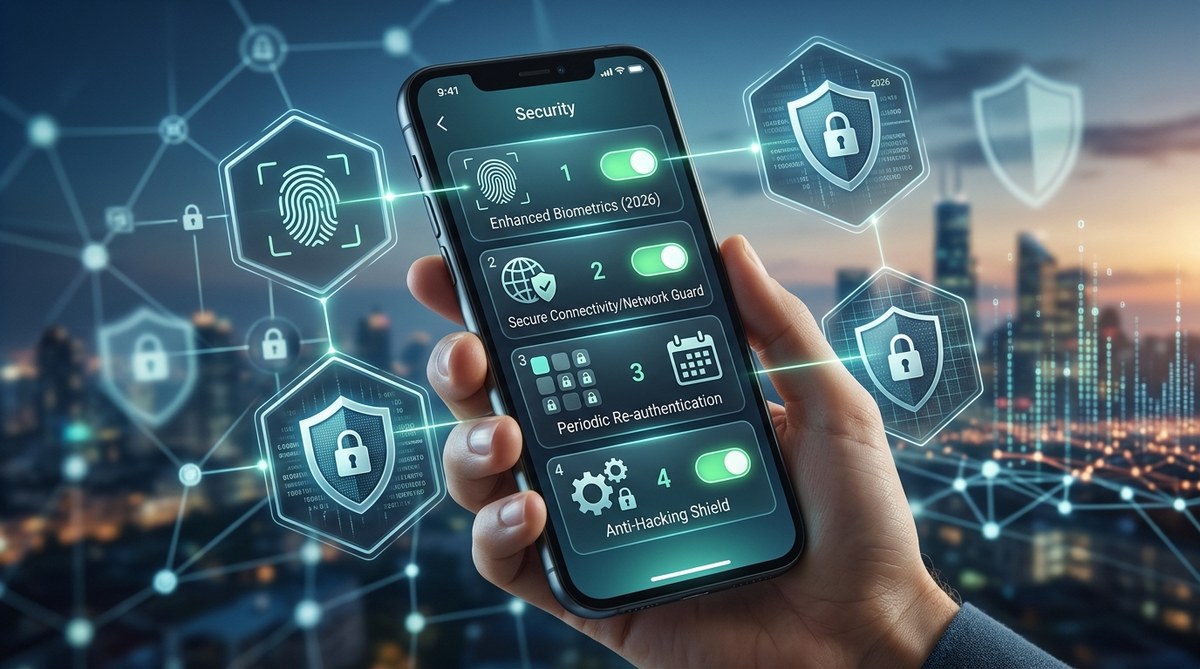
Your phone’s app lock is stronger than ever in 2026. But here’s the thing: hackers and snoopers have also leveled up. They’ve found ways to bypass default app lock settings using notification previews, auto‑unlock timers, and weak authentication methods. If you own an Android phone — especially a Samsung — you need to adjust four specific settings right now. These tweaks will block the latest bypass techniques and keep your banking, messaging, and photo apps truly locked.
To defeat 2026’s emerging threats, adjust these four Android app lock security settings: enable biometric unlock for each locked app, hide notification content from locked apps, set an instant auto‑lock timer (under 10 seconds), and use a separate PIN or pattern for sensitive apps. These steps prevent screen‑peeking, overlay attacks, and timer‑based bypasses.
Setting 1: Enable Biometric Lock for Every Locked App
Your phone might already ask for a fingerprint or face scan when you open a locked app. But in 2026, many default settings still fall back to a PIN or pattern too soon. That gives attackers a door if they can guess your code.
Here’s how to lock it down on stock Android and Samsung One UI:
- Open Settings > Security and privacy > App lock (on Samsung: Settings > Biometrics and security > Secure Folder / App lock).
- Turn on the toggle for Use biometrics.
- Choose Always require biometrics instead of “allow fallback to PIN after failed attempt” (this option might be hidden under a “Advanced” menu).
- Lock each app individually by toggling it on in the app list.
Samsung owners: In Good Lock, you can set “Authentication method” to “Biometrics only” inside the LockStar module. This prevents the PIN fallback entirely.
If you want a deeper walkthrough, check out our guide on locking individual apps with biometrics.
Setting 2: Disable Notification Previews for Locked Apps
Even with a locked app, notification previews can leak sensitive data. When a message from your banking app pops up on the lock screen, the sender name and amount are visible to anyone nearby. In 2026, this is one of the most common ways people accidentally expose their info.
Follow these steps to hide previews for all locked apps:
- Go to Settings > Notifications > App notifications.
- Tap each sensitive app (banking, email, messaging).
- Select Show notifications on lock screen and change it to Don’t show notifications or Hide sensitive content.
- On Samsung, also go to Lock screen > Notifications > Show content and set it to Hide content.
For an extra layer, use the best app locking strategies to manage notification behavior per app.
Setting 3: Set an Auto‑Lock Timer to Lock Apps Instantly When You Walk Away
Most phone app locks have a timeout setting. If you leave a locked app open and walk away, a default timeout of 30 seconds or more leaves your data exposed. In 2026, malicious actors use “proximity attacks” — they watch for devices left unlocked in coffee shops or on public transport.
Here’s a quick reference table to help you pick the right timeout:
| Scenario | Recommended Auto‑Lock Timeout | Why |
|---|---|---|
| Using the phone at a desk | 10 seconds | Balances convenience and safety |
| Walking around a crowded area | 5 seconds | Minimizes window for physical access |
| Public transit or shared spaces | 1 second (instant) | Keeps apps locked before you even put the phone down |
| Home, trusted environment | 30 seconds (max) | Reduces friction while still protecting overnight |
To adjust this:
– Stock Android: Settings > Security > Auto‑lock app or App lock timeout.
– Samsung: Settings > Lock screen > Secure lock settings > Auto lock — but also check inside Good Lock > LockStar > App lock timeout.
Set the timeout to the shortest option that doesn’t annoy you. For public use, “1 second” is ideal.
Setting 4: Use a Separate Lock Method for Sensitive Apps (PIN vs Pattern vs Biometrics)
Here’s a scenario: you use your face to unlock your phone, and that same biometric unlocks all your locked apps. If someone forces you to look at the phone (a “face‑pinning” attack), they gain access to everything. In 2026, this threat is real.
Expert advice: Assign a different PIN or pattern to your most sensitive apps. This creates a second barrier even if your main biometric is compromised. For example, use your fingerprint to unlock the phone, but set a unique 6‑digit PIN for your banking app and Secure Folder.
On Samsung, you can set this via Secure Folder > Lock type > Pattern or PIN. On stock Android, use your app lock’s “Advanced” settings to choose a separate PIN for each locked app.
Avoid using the same pattern you use for your phone unlock. Make it something totally different — like a pattern that traces a letter shape only you know.
For more ways to keep separate accounts safe, read how to strengthen your mobile app security against unauthorized access.
Common Mistakes That Undo Your App Lock Security
Even after tweaking the four settings above, a few common slip‑ups can render them useless. Check the table below to see if you’re making any of these errors.
| Mistake | Why It’s Dangerous | The Fix |
|---|---|---|
| Using the same PIN for app lock and phone unlock | One compromised PIN opens everything | Set a unique PIN for each app lock |
| Allowing notification previews on lock screen | Anyone can read message contents | Set to “Hide sensitive content” |
| Setting auto‑lock timeout to 30 seconds or more | Leaves apps open while you walk away | Reduce to 5 seconds or less |
| Keeping biometric fallback to PIN enabled | Attackers can bypass fingerprint with brute force | Enable “Biometrics only” when available |
How to Verify Your Settings Are Working Correctly
After making these adjustments, test them:
- Lock an app, turn off the screen, then turn it back on and try to open that app. Does it ask for biometrics or PIN immediately? Good.
- From a friend’s phone (or a second device), send yourself a message while the app is locked. Does the notification show any content? It should say “Notification hidden” or nothing at all.
- Set a timer for the auto‑lock duration. Open an app, then walk away. When you return, it should be locked within the time you set.
Run through these checks after every Android update, because updates sometimes reset app lock settings.
Your Privacy Depends on These Small Adjustments
The four settings we covered — biometric lock, notification hiding, short auto‑lock timers, and separate PINs — take less than ten minutes to configure. They directly counter the newest 2026 bypass techniques used by snoopers and malware. Don’t wait until your private photos or bank balance gets exposed. Open your phone’s settings right now and make these changes. Your future self will thank you.
If you want to stay ahead of even more threats, check out top strategies to secure your mobile apps from hackers and essential tips to protect your mobile apps from unauthorized access.