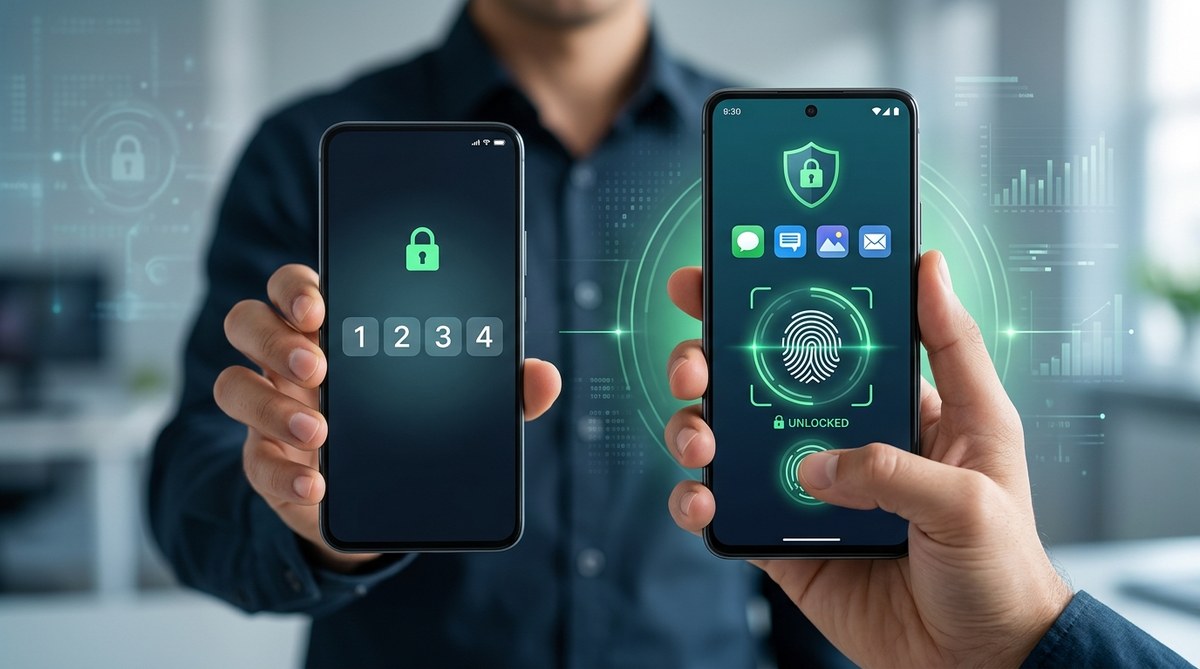
Your phone unlocks with your face or fingerprint in a split second. But the moment you open your banking app, your doctor’s portal, or your private messaging app, you’re back to tapping a four-digit code. That mismatch feels wrong, and it is. PINs were designed for an era of simpler threats. In 2026, a biometric app lock upgrade isn’t a luxury – it’s the smartest step you can take to protect the data inside your most sensitive apps.
Moving from PINs to biometric app locks closes three major vulnerabilities: shoulder surfing, smudge traces, and guessable codes. Your fingerprint or face unlocks apps instantly, yet never leaves your phone’s secure chip. This guide walks you through the upgrade process, compares both methods side by side, highlights common mistakes, and shows you exactly how to lock down your Android apps the right way in 2026.
Why Your PIN is a Weak Link
We’ve all done it – covering the screen with one hand while entering a PIN at a coffee shop. But that habit only slows down a casual glance. A determined observer can memorize your pattern from several feet away. Worse, your screen holds residue from every tap. A simple photo with a flash can reveal your exact code sequence.
Then there’s the reuse problem. Most people use the same PIN for their phone and their debit card. If a data breach exposes one, both are compromised. And if you’re one of the 28% of Americans who still use “1234” or “0000” (according to a 2025 survey by Security.org), you’re practically inviting trouble.
PINs are also slow. Typing six digits takes two to three seconds per unlock, and if you have multiple apps locked with different codes, you’re wasting mental energy remembering them.
Biometrics remove all of these pain points. Your fingerprint or face is unique, can’t be guessed, leaves no trace on the screen, and works in less than a second. A biometric app lock upgrade is the clear replacement.
What a Biometric App Lock Upgrade Actually Does
A biometric app lock uses your device’s built-in fingerprint sensor, face scanner, or iris camera to verify you are you. The data stays on your phone’s secure enclave – a dedicated chip that even the operating system can’t access directly. When you set up an app lock, the app creates a cryptographic key tied to your biometric template. Every time you open the locked app, it requests verification from that secure chip. The chip compares your live scan to the stored template and says “yes” or “no.” No biometric data ever travels to the cloud or gets stored by the app developer.
This means a hacker who steals your phone can’t extract your fingerprint from the lock app. And if someone forces you to unlock an app, you can refuse – but realistically, biometrics make it easy for you and impossible for anyone else.
Android has supported biometric authentication natively since Android 6.0, with major improvements in Android 9 and later. Most phones from 2020 onward feature high-quality in-display or capacitive fingerprint sensors. If your phone has one, you’re ready for the upgrade.
How to Upgrade Your App Lock to Biometrics
Follow these steps to move from PINs to biometric protection on your Android device. The whole process takes less than ten minutes.
-
Check your phone’s biometric capabilities. Go to Settings > Security > Biometrics. If you see options for fingerprint, face, or iris, enroll them now. Make sure to add your thumb and index finger on both hands – you’ll thank yourself when holding the phone in landscape mode.
-
Install a dedicated biometric app locker. The stock Android app lock is limited to lock screen only. For per-app biometric locks, you need a third-party tool. AppLock from applock.ooo is built specifically for this upgrade – it uses Android’s native biometric API so your data never leaves your device.
-
Configure which apps to lock. Start with your high-risk apps: banking, Venmo, email, password manager, social media, messaging, photos, and health portals. Most experts recommend locking anything that contains financial data, personal identification, or private conversations.
-
Set a strong backup PIN or pattern. Biometrics can fail – wet fingers, bright sunlight, or a new face mask. Your fallback must be a real password, not “1111.” Use at least six digits or a pattern that’s hard to guess.
-
Test every locked app. Open each app and verify that you’re prompted for biometrics. Then lock the screen and re-open the app – it should still ask. If any app skips the lock, revisit your settings.
Common Mistakes to Avoid
Even after upgrading, small errors can create gaps. Watch out for these:
- Using the same backup PIN for everything. If someone watches you type your backup code, all your biometric locks are bypassed.
- Forgetting to lock secondary apps like Google Photos, Notes, or file managers. These often contain sensitive data too.
- Enabling “auto-unlock” for trusted locations. That convenience gives anyone with your phone full access at home.
- Ignoring app permissions that allow remote access. Screen-sharing apps can capture biometric prompts if the app lock isn’t secure.
- Skipping updates. Biometric lock apps receive patches for new Android versions and vulnerabilities. Leave auto-update on.
Biometric vs PIN: A Side-by-Side Comparison
To see exactly what you gain, look at this breakdown.
| Feature | PIN | Biometric App Lock |
|---|---|---|
| Unlock speed | 2 to 4 seconds per entry | Under 1 second |
| Shoulder surfing risk | High | Zero |
| Smudge trace vulnerability | Yes | None |
| Guessing difficulty | Easy (if common) | Nearly impossible |
| Memorization needed | Yes | No |
| Works with wet/dirty hands | Yes | Sometimes (fingerprint may fail) |
| Requires fallback method | No (if forgotten, lockout) | Yes (PIN or pattern) |
| Data privacy | No biometric data | Stored only in secure chip |
“Biometric authentication is not just about convenience; it’s about raising the baseline of security for everyday users. PINs are still useful as a fallback, but they should never be your first line of defense for sensitive apps.” — Sarah Henderson, senior security adviser at Mobile Defense Labs
When Biometric App Locks Aren’t Enough
Biometrics are excellent, but they aren’t perfect. Twins can fool face unlock on older devices. A high-resolution photo might trick some budget phones’ face scanners. And if you’re in a jurisdiction where police can compel you to unlock with your fingerprint (the U.S. Supreme Court has ruled that biometrics are not protected by the Fifth Amendment in some cases), you might prefer a PIN as your primary method.
In those situations, you can use the app’s fallback PIN system. Some users keep a longer password (10+ characters) as their backup, using biometrics only for convenience. That’s a smart compromise.
Another edge case: if you break your finger or cut your thumb, your primary biometric might not work. That’s why enrolling multiple fingers and a backup face is recommended. And always keep your backup PIN somewhere safe – a password manager – so you’re never locked out.
Strengthen Your Whole Security Posture
An app lock upgrade is one piece of a larger privacy puzzle. To get the most out of it, pair it with other strong habits. For example, review which apps have permissions to your camera and microphone – a compromised app could record your biometric entry. Our guide on how to spot and stop hidden app permissions that leak your data in 2026 can help you clean up.
You should also understand the latest threats that bypass even good app locks. Take a look at why your app lock might be useless against these 3 new threats in 2026 to stay ahead.
And if you share your device with family, you’ll want to know the best app locking strategies to secure your private apps and files without locking everyone else out.
Make the Switch Today
You’ve already upgraded your phone’s lock screen to biometrics. Why leave your apps stuck in 2010? A biometric app lock upgrade takes minutes, costs nothing extra (if you have a capable phone), and gives you instant, strong protection for the data that matters most.
Start with your banking app. Then lock your email. Then your password manager. You’ll wonder why you waited so long.
Set aside ten minutes this afternoon, follow the five steps above, and turn your Android phone into a truly private device. Your thumbs will thank you.