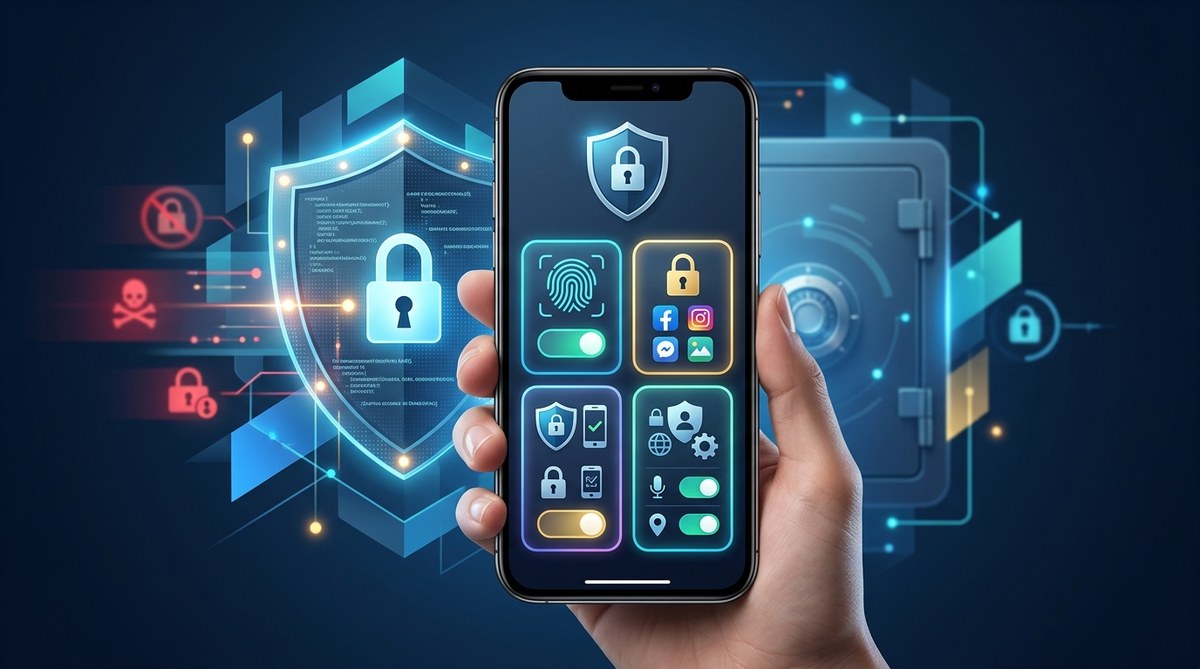
You probably have dozens of apps on your phone or computer. Each one asks for permissions. Most of the time you just tap “Allow” and move on. That little habit is one of the biggest risks to your personal data. The good news is that fixing it takes just a few minutes. A handful of app security settings for privacy can stop your information from being shared, sold, or stolen. And you do not need to be a tech expert to turn them on.
Most app security settings for privacy are buried in menus you rarely visit. This article covers the four most impactful changes: restricting app permissions, enabling biometric locks, turning off background activity for sensitive apps, and managing ad tracking. Each step takes under two minutes and requires no technical skill. Apply them today to stop data leaks and keep your personal life private.
Why Most People Miss the Settings That Matter
When you install a new app, the setup process is designed to be fast. Developers want you to start using the tool, not to sit reading permission screens. So you tap “Allow Location” on a flashlight app or “Enable Microphone” on a simple note taking tool. It feels harmless. But those permissions stay active forever unless you manually turn them off.
The problem is scale. The average smartphone user in the United States has around 80 apps installed. If each app has three or four permissions you never checked, that is hundreds of ways your data can slip out. Your contacts list, your photo library, your exact location, and even your microphone can be accessed by apps you forgot you had.
The fix is not complicated. You just need to know which levers to pull. Let us walk through the four app security settings for privacy that make the biggest difference.
Setting 1: Lock Down Individual Apps with a Second Layer
Your phone probably has a passcode or a fingerprint scanner. That is good. But once the phone is unlocked, every app is open for anyone to see. If you hand your phone to a friend to show a photo, they can scroll through your messages. If you leave your device on a desk, a coworker can open your banking app.
A simple solution is to lock individual apps behind a second layer of security. Most modern phones let you do this with your fingerprint, face scan, or a separate PIN. When you enable this setting, even after the phone is unlocked, the app asks for extra verification.
This is one of the most effective app security settings for privacy because it protects you in the most common scenarios. Your messaging app, your email, your banking app, and your photo gallery can each have their own lock. If you want to go a step further, you can use a dedicated app locker tool. Check out these best practices for locking apps and safeguarding personal data to see how to set this up on both iPhone and Android.
Setting 2: Review and Restrict App Permissions Regularly
Permissions are the main gateway for data leaks. Every app asks for access to something. The problem is that many apps ask for more than they need. A simple weather app does not need your contact list. A calculator does not need your microphone. A wallpaper app does not need your location.
Here is a practical process to review your permissions:
- Open your device settings and go to the privacy or permissions section.
- Look for a list of all installed apps sorted by permission type (camera, microphone, location, contacts, photos, etc.).
- Tap each permission category and see which apps have access.
- For any app that does not absolutely need that permission, change the setting to “While Using” or “Deny”.
- Repeat this once every three months to catch new apps you have added.
A good rule of thumb is this: if an app’s core function does not require a permission, turn it off. A navigation app needs your location. A meditation app does not. A video calling app needs your camera. A recipe app does not.
Many people are surprised by what they find. A game that has access to your photo library. A shopping app that can listen through your microphone. These are not always malicious. Sometimes developers add permissions for features they never shipped. But the access is still there. Read our guide on how to spot and stop hidden app permissions that leak your data in 2026 for a deeper look at which permissions to watch most closely.
Setting 3: Turn Off Background Activity for Sensitive Apps
Even when you are not actively using an app, it can still run in the background. It can refresh its content, send data to its servers, and track your location. This background activity is a major privacy risk because it happens without your awareness.
Your phone’s battery settings often show you which apps use the most power in the background. That is a good clue. If an app you barely use is draining battery, it is probably sending data somewhere. Go into your settings and disable background refresh or background activity for any app that does not need to update constantly.
Apps that should usually have background activity turned off include:
– Social media apps (they do not need to refresh when you are not looking)
– Shopping apps
– Games
– News apps (unless you want breaking news alerts)
– Any app you open fewer than three times per week
Apps that genuinely need background activity include:
– Messaging and calling apps (so you receive notifications)
– Email apps (if you need real time alerts)
– Navigation apps (if you are using turn by turn directions)
– Health monitoring apps
This is one of those app security settings for privacy that does double duty. It protects your data and it saves your battery. You can learn more about protecting your device on public networks by reading these 7 app security features you must enable before connecting to public Wi-Fi.
Setting 4: Limit Ad Tracking and Data Collection
Every app on your phone has a unique advertising identifier. This is a string of numbers that lets advertisers track your activity across different apps and services. They build a profile of your interests, your habits, your location patterns, and even your income level based on the apps you use.
Both iPhone and Android let you limit this tracking. On iPhone, you can turn on “Ask Apps Not to Track” and then deny tracking requests individually. On Android, you can opt out of ad personalization, which removes your advertising ID from the tracking system.
This is one of the simplest app security settings for privacy to enable. It takes about 10 seconds. But it has a big effect. Without your advertising ID, apps cannot link your activity together into a single profile. The data they collect becomes much less valuable to advertisers and data brokers.
Some people worry that limiting ad tracking will break apps or make them paid. That is not true. Apps will still work. You will still see ads. They will just be less relevant to you. That is a trade off most privacy conscious users are happy to make.
Common Mistakes People Make with Privacy Settings
Even when people know about these settings, they often make a few errors. The table below shows the most common mistakes and the better approach.
| Common Mistake | Why It Hurts Your Privacy | What to Do Instead |
|---|---|---|
| Allowing “Always” location for every app | Apps can track your movements all day long | Use “While Using” for all apps except navigation and weather |
| Giving microphone access to any app that asks | Apps can listen for audio triggers or record without notice | Deny microphone for all apps except voice recorders and calling apps |
| Leaving unused apps installed | Old apps still have permissions and can update their data access | Delete apps you have not used in 90 days |
| Tapping “Allow” on every notification prompt | Apps can send promotional notifications that contain tracking beacons | Deny notification permissions for non essential apps |
| Using social login for every sign up | The social platform (Google, Facebook, Apple) can track your activity across all those apps | Use email sign up or hide your email when possible |
If you recognize yourself in any of these mistakes, do not worry. You are not alone. Most people make them because the defaults are designed to collect as much data as possible. The fix is just a few taps away.
“The most overlooked security setting is the permission review screen. People set it once during installation and never look again. But app updates can add new permissions without you noticing. Set a calendar reminder to check your permissions every 90 days. That single habit eliminates the majority of casual data leaks.” — Sarah Chen, mobile privacy researcher at the Digital Rights Institute
How to Stay Consistent with Your Privacy Settings
Changing these settings once is great. But apps update, you install new ones, and permissions can sometimes reset after major operating system updates. The key is to build a simple routine.
Here are a few ways to stay on top of your app security settings for privacy without it feeling like a chore:
- Set a recurring reminder on your phone for the first Sunday of each season. Use that time to run through the four settings above.
- When you install a new app, take 30 seconds to review its permissions before you open it. Do not just tap “Allow All”.
- Once a month, scroll through your app drawer and delete anything you have not used recently. Fewer apps means fewer risks.
- Pay attention to your battery usage screen. If an app you barely use is consuming power in the background, something is probably running that should not be.
- If you share your device with family members, create a separate user profile or guest mode so your settings stay intact.
These small habits add up. They turn privacy from a one time fix into a lasting part of how you use technology. For more detailed strategies, take a look at these simple steps to strengthen your mobile privacy and keep personal data secure.
What to Do If You Have Been Ignoring These Settings
If you just realized that you have never checked your app permissions or ad tracking settings, do not panic. You can fix everything in under 10 minutes right now. Here is a quick action plan.
Open your settings right now. Go to the privacy section. Start with permissions. Work through location, camera, microphone, and contacts first. Turn off anything that looks unnecessary. Next, find the ad tracking or advertising settings and limit them. Then check which apps have background activity enabled and disable it for anything that does not need it. Finally, set up app locking for your most sensitive apps like banking, messaging, and email.
That is it. You have just closed the most common data leaks that most people never address. If you want a more thorough walkthrough, our article on top strategies to secure your mobile apps from hackers covers additional steps for users who want extra protection.
Your Privacy Is Worth These Few Minutes
The apps on your phone know a lot about you. Where you live, who you talk to, what you buy, where you go, and when you are home. That information is valuable. To advertisers, to data brokers, and unfortunately to scammers and hackers too. But you have the power to limit what they get.
These four app security settings for privacy are not complicated. They do not require special tools or technical knowledge. They just require you to spend a few minutes paying attention to the permissions you have been ignoring. That small effort keeps your personal data where it belongs. In your hands, not in someone else’s database.
Start with one setting today. Pick the one that feels easiest. Maybe that is limiting ad tracking, because it takes ten seconds. Or maybe it is locking your messaging app, because that gives you peace of mind right away. Once you do one, the rest will feel natural. You will wonder why you did not do it sooner.